


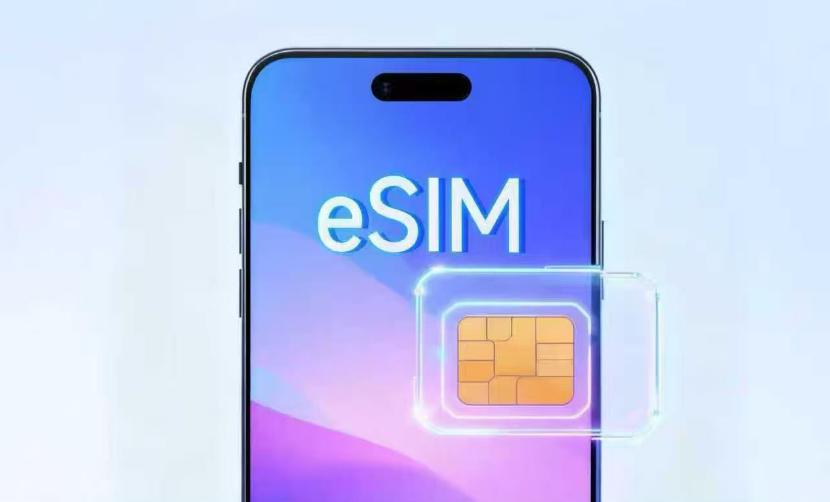
You just landed in Paris. You enabled your eSIM like the instructions said. But your phone shows “No Service.” You try restarting. Still nothing. You’re standing in Charles de Gaulle Airport at 10 PM with no data, no maps, and no way to contact your hotel.
Don’t panic. Most eSIM issues have simple fixes that take 30 seconds to 2 minutes. The problem is usually one small setting that’s easy to miss—like Data Roaming being disabled for the eSIM line specifically, not globally.
This guide walks through every common eSIM problem and its solution, organized by symptom. Find your issue, follow the steps, and you’ll be connected in minutes.
Before Troubleshooting: Quick Checks
Before diving into specific problems, verify these basics:
| Check Item | Details |
|---|---|
| Phone Compatibility | iPhone XS or newer, Samsung Galaxy S20 or newer, Google Pixel 3 or newer. Check: Settings > Cellular > “Add Cellular Plan” option exists. |
| Carrier Unlocked | iPhone: Settings > General > About > Carrier Lock = “No SIM restrictions”. Android: Settings > About > Status > SIM Lock = “Unlocked”. |
| Coverage Area | Verify your eSIM provider covers your current location. Some plans exclude certain countries or regions. |
| Plan Validity | Check expiration date in your provider’s app or email. Some plans expire by calendar days, not 24-hour periods. |
If all four checks pass, proceed to your specific problem below.
Problem 1: “No Service” After Enabling eSIM
This is the most common eSIM issue. Your eSIM is installed and enabled, but your phone shows “No Service” or “Searching.”
Solution 1: Enable Data Roaming (Fixes 60% of cases)
This is the #1 cause of “No Service” errors. eSIM profiles require Data Roaming to be enabled, even though you’re using them in their designated countries.
| iPhone Instructions | Android Instructions |
|---|---|
| 1. Settings > Cellular 2. Tap your eSIM line 3. Toggle Data Roaming to ON |
1. Settings > Network & Internet > SIMs 2. Tap your eSIM 3. Toggle Roaming to ON |
Why this works: eSIM profiles technically operate as “roaming” services even in their designated countries.
Solution 2: Toggle Airplane Mode (Fixes 20% of cases)
Forces your phone to search for networks again.
- Enable Airplane Mode.
- Wait 10 seconds.
- Disable Airplane Mode and wait 30-60 seconds.
Solution 3: Restart Your Device (Fixes 15% of cases)
Clears temporary software glitches and reloads the eSIM profile.
Solution 4: Manually Select Network (Fixes 4% of cases)
| Device | Steps |
|---|---|
| iPhone | Settings > Cellular > [Your eSIM] > Network Selection > Turn OFF “Automatic” > Select a network manually. |
| Android | Settings > Network & Internet > SIMs > [Your eSIM] > Network Operators > Turn OFF “Select Automatically” > Select a network manually. |
Problem 2: eSIM Won’t Install / “Cellular Plan Cannot Be Added”
Solution 1: Verify Phone is Unlocked
Locked phones reject eSIM profiles from third-party providers. Check Settings > General > About > Carrier Lock.
Solution 2: Check Internet Connection
eSIM installation requires downloading a profile. Ensure you have stable WiFi or mobile data.
Solution 3: Manual Entry
If QR code scanning fails, tap “Enter Details Manually” and enter the SM-DP+ Address and Activation Code from your email.
Solution 4: Remove Old eSIM Profiles
Phones typically store 5-10 profiles. Delete old, unused plans to make space.
Problem 3: Slow Speeds or Intermittent Connection
| Issue | Fix |
|---|---|
| Physical Barriers | Move to a window or go outside if in a basement or dense building. |
| Weak Network | Manually select a different carrier in your settings. |
| Data Depleted | Check balance in provider app and top up if necessary. |
| VPN Issues | Disable VPN temporarily to test speeds. |
Problem 4: eSIM Works But Can’t Make/Receive Calls
This is Usually Normal. Most eSIM data plans don’t include a local phone number.
| Option | How it Works |
|---|---|
| Internet Calling | Use WhatsApp, FaceTime, or Skype over your data connection. |
| Dual-SIM Mode | Keep physical SIM for calls (home number) and eSIM for data. |
Problem 5-8: Technical Errors & Data Management
Problem 5: eSIM Disappeared
Check if accidentally deleted. If so, contact your provider for a new QR code or attempt reinstallation.
Problem 6: “Invalid Activation Code”
Always Copy-Paste. Do not type manually. Check for extra spaces at the beginning or end of the code.
Problem 7: Cross-Border Issues
Verify coverage for the new country. Wait 2-5 minutes for registration and toggle Airplane Mode.
Problem 8: Fast Data Depletion
| Action | Potential Savings |
|---|---|
| Disable Background App Refresh | 200-500MB daily |
| Turn off Auto-Updates | 100-500MB per update |
| Enable Low Data Mode | Significant overall reduction |
When to Contact Support
Have your order number, phone model, location, and screenshots of error messages ready. RedEx eSIM Support is available 24/7 via app, WhatsApp, or email.
Prevention Tips
| Install Before Departure | Eliminates dependence on airport WiFi. |
| Test Briefly | Enable for 30 seconds at home to confirm signal. |
| Offline Maps | Download Google Maps for your destination in advance. |
Quick Reference Summary
| If you see… | Try this first: |
|---|---|
| No Service | Enable Data Roaming |
| Won’t Install | Verify Phone is Carrier-Unlocked |
| Slow Speeds | Manually Select Different Network |
| Can’t Make Calls | Use WhatsApp/FaceTime (Normal for Data-only) |