


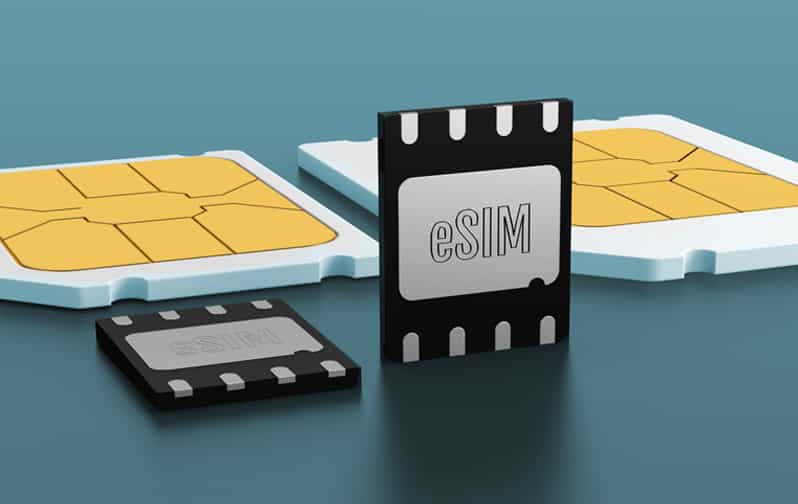
Your flight to Tokyo leaves in 6 hours. You just remembered you need mobile data when you land. Your friend mentioned something about eSIM being “super easy”—just scan a code and you’re done. But you’ve never done it before. Is it actually simple? What if something goes wrong at midnight in Narita Airport?
Here’s the truth: eSIM installation takes 3 minutes when you know what you’re doing. But if you skip one small step—like enabling Data Roaming for the eSIM line specifically—you’ll spend 20 frustrated minutes wondering why your phone shows “No Service” despite following every instruction.
This guide walks through the complete eSIM installation and activation process for both iPhone and Android devices. Not the sanitized version that skips the confusing parts. The real version that addresses the specific steps where people actually get stuck.

Before You Start: Three Critical Checks
Check 1: Does Your Phone Support eSIM?
Don’t assume. Verify.
iPhone users: You need iPhone XS or newer. That includes:
- iPhone XS, XS Max, XR (2018)
- iPhone 11, 11 Pro, 11 Pro Max (2019)
- iPhone 12, 12 mini, 12 Pro, 12 Pro Max (2020)
- iPhone 13, 13 mini, 13 Pro, 13 Pro Max (2021)
- iPhone 14, 14 Plus, 14 Pro, 14 Pro Max (2022)
- iPhone 15, 15 Plus, 15 Pro, 15 Pro Max (2023)
- Any newer models
Quick check: Settings > Cellular > Add Cellular Plan. If you see this option, your iPhone supports eSIM.
Android users: Support varies wildly by manufacturer and model.
Confirmed eSIM support:
- Samsung Galaxy S20, S21, S22, S23, S24 (all variants)
- Google Pixel 3, 4, 5, 6, 7, 8 (all variants)
- Samsung Galaxy Z Fold/Flip 3, 4, 5
- Select Motorola, Oppo, and Huawei models
Quick check: Settings > Network & Internet > SIMs. If you see “Add” or “Download SIM,” your Android phone supports eSIM.
If your phone doesn’t support eSIM, you need a physical SIM card. No workaround exists.
Check 2: Is Your Phone Unlocked?
Carrier-locked phones reject eSIM profiles from third-party providers like RedEx eSIM. You can only use eSIM from your original carrier until you unlock the device.
iPhone unlock check:
- Settings > General > About
- Scroll to “Carrier Lock” or “Network Provider Lock”
- If it says “No SIM restrictions” → You’re unlocked ✓
- If it shows a carrier name → You’re locked ✗
Android unlock check:
- Settings > About Phone > Status
- Look for “SIM Lock Status”
- If it says “Unlocked” → You’re good ✓
- If it shows “Locked” → Contact your carrier ✗
How to unlock: Contact your carrier. Most carriers unlock devices after you complete your contract or payment plan. The process takes 24-48 hours after approval.
Check 3: Do You Have WiFi or Mobile Data?
eSIM installation requires downloading a carrier profile from the internet. You need either:
- WiFi connection (preferred)
- Mobile data from your current SIM card
If you’re installing at home before your trip, use WiFi. If you’re installing after landing, find airport WiFi or use your home carrier’s data (yes, this might incur small roaming charges, but downloading an eSIM profile uses less than 5MB).
Installing eSIM on iPhone: Complete Process
Step 1: Purchase Your eSIM Plan
Before installation, buy your eSIM plan. For this example, we’ll use RedEx eSIM.
- Visit the RedEx eSIM website or app
- Select your destination (e.g., Japan, Europe, United States)
- Choose your plan (daily, weekly, or monthly)
- Complete purchase
- Check your email for the QR code
You’ll receive an email within 1-2 minutes containing:
- A QR code image
- An activation code (alphanumeric string)
- Installation instructions
Save this email. You’ll need it for the next step.
Step 2: Open Cellular Settings
- Open Settings (gray gear icon)
- Tap Cellular or Mobile Data
- Tap Add Cellular Plan or Add eSIM
Your iPhone’s camera activates automatically, showing a viewfinder with a rectangular frame.
Step 3: Scan the QR Code
You need the QR code displayed on a different device—another phone, tablet, laptop, or printed paper. You cannot scan a QR code that’s stored on the same phone you’re installing the eSIM on.
Option A: Use another device
- Open the eSIM email on your laptop or tablet
- Display the QR code on that screen
- Point your iPhone’s camera at the QR code
- Hold steady for 2-3 seconds
- The camera automatically scans (no button to press)
Option B: Manual entry (if you don’t have another device)
- Tap “Enter Details Manually” at the bottom of the scan screen
- You’ll see two fields:
- SM-DP+ Address
- Activation Code
- Copy these exactly from your email (they’re usually below the QR code)
- Paste into the corresponding fields
- Tap “Next”
Common mistake: Trying to scan a screenshot of the QR code from your iPhone’s Photos app. This doesn’t work. The camera cannot access your photo library while in scanning mode.
Step 4: Download the Profile
After scanning or manual entry, your iPhone shows “Cellular Plan Detected” with the carrier name (e.g., “RedEx eSIM” or the destination country).
Tap Continue.
A progress bar appears as your phone downloads the carrier profile. This takes 10-30 seconds depending on your internet speed.
When complete, you’ll see “Cellular Plan Ready to Be Activated.”
Tap Continue again.
Step 5: Label Your eSIM
iOS asks you to label this eSIM so you can identify it later.
Preset options include:
- Travel
- Business
- Personal
- Primary
- Secondary
Or tap “Custom Label” to create your own.
Recommended labels:
- “Japan Travel” (if it’s for a specific country)
- “Europe Data” (if it’s a regional plan)
- “RedEx eSIM” (if you’ll use it in multiple trips)
Choose a label and tap Continue.
Step 6: Configure Default Lines
iOS now asks three questions about how to use this eSIM.
Question 1: “Which line would you like to use for Cellular Data?”
This asks which SIM provides your internet connection.
- Select your new eSIM if you want to use it for data (typical for travel)
- Select your physical SIM if you want to keep using your home carrier for data
For travel, choose the eSIM.
Question 2: “Which line would you like to use as your Default Line?”
This asks which line handles calls and iMessage.
- Select your physical SIM (your home carrier) to keep your regular phone number for calls
- Select your eSIM only if you want to use a new number for everything
For travel, choose your physical SIM to stay reachable on your regular number.
Question 3: “Allow Cellular Data Switching?”
This lets iOS automatically switch to your other line if your primary data line has no signal.
- Enable this (recommended) for better reliability
- Disable if you want strict control over which line uses data
Tap Continue after making your selections.
Step 7: Enable Data Roaming (Critical Step)
You’re back at the main Cellular settings screen. You now see both your physical SIM and your new eSIM listed.
This next step is critical and often skipped:
- Tap on your eSIM line (the one you just added)
- Find the Data Roaming toggle
- Turn it ON (green)
Why this matters: eSIM profiles require Data Roaming to be enabled, even though you’re using them in their designated countries. Without this, your eSIM won’t connect to any network.
Step 8: Keep the eSIM Disabled Until You Arrive
One more important step: Don’t enable the eSIM yet if you’re still in your home country.
Look at your eSIM line in Cellular settings. You’ll see a toggle at the top that says “Turn On This Line.”
Keep this OFF until you arrive at your destination.
Why? If you enable it now, you might accidentally consume data in your home country, wasting your travel data allocation.
Installation complete. Your eSIM is installed and ready. When you land at your destination, you’ll enable it (covered in the Activation section below).
Installing eSIM on Android: Complete Process
Android installation varies by manufacturer. These instructions cover Samsung and Google Pixel devices (the most common). Other Android phones follow similar patterns.
Step 1: Purchase Your eSIM Plan
Same as iPhone—buy your plan from RedEx eSIM or another provider. You’ll receive an email with a QR code and activation details.
Step 2: Open SIM Settings
Samsung Galaxy:
- Open Settings
- Tap Connections
- Tap SIM card manager or SIM manager
Google Pixel:
- Open Settings
- Tap Network & Internet
- Tap SIMs or Mobile Network
Other Android:
Look for Settings > Network > Mobile Network or similar paths.
Step 3: Add eSIM
Look for an option to add a new SIM:
- “Add mobile plan”
- “Add carrier”
- “Add eSIM”
- A plus (+) icon
Tap this option.
You’ll see two choices:
- Scan QR code
- Enter activation code manually
Step 4: Scan QR Code or Enter Manually
Option A: Scan QR code
- Select “Scan QR code from carrier”
- Your phone’s camera activates
- Display the QR code on another device (laptop, tablet, or printed)
- Point your camera at the QR code
- Hold steady for 2-3 seconds
- The camera scans automatically
Option B: Manual entry
- Select “Enter activation code” or “Enter details manually”
- You’ll see fields for:
- SM-DP+ Address
- Activation Code
- Copy these exactly from your email
- Tap “Add” or “Next”
Step 5: Download and Activate
Your Android phone downloads the eSIM profile. A progress indicator shows download status (15-45 seconds).
When complete, the phone may:
- Automatically activate the eSIM (you’ll see “Activated” or a checkmark)
- Ask you to confirm activation (tap “Activate” or “Enable”)
Step 6: Label and Configure
After activation, you’ll see the eSIM in your SIM manager screen alongside any physical SIM.
Tap the new eSIM to access its settings.
Assign a label: Tap “Name” or “Label” and enter something descriptive like “Japan Travel” or “Europe Data.”
Configure usage: Choose what this eSIM handles:
- Mobile data: Enable (this is why you installed it)
- Calls: Usually leave disabled (keep calls on your home SIM)
- SMS: Usually leave disabled (keep texts on your home SIM)
Step 7: Enable Data Roaming (Critical)
Within the eSIM settings, find Roaming or Data Roaming.
Turn it ON.
This is mandatory. Without Data Roaming enabled, your eSIM won’t connect to networks.
Step 8: Disable the eSIM Until Arrival
If you’re still in your home country, disable the eSIM until you reach your destination.
In SIM manager, toggle the eSIM to OFF or Disabled.
Enable it only after you land.
Activating Your eSIM at Your Destination
You’ve landed. Time to activate.
iPhone Activation
- Open Settings > Cellular
- Tap your eSIM line
- Toggle “Turn On This Line” to ON (green)
- Wait 30-60 seconds
Your iPhone searches for compatible networks, registers, and establishes a data connection.
You’ll see:
- Signal bars appear in the status bar
- A carrier name or “eSIM” label
- Data connection indicator (4G, LTE, or 5G)
Test by opening Safari and loading a website.
Android Activation
- Open Settings > SIM manager (or equivalent)
- Tap your eSIM
- Toggle it to ON or Enabled
- Wait 30-60 seconds
Your Android phone connects to the network.
You’ll see:
- Signal bars in the status bar
- Carrier name
- Data indicator
Test by opening Chrome and loading a website.
Troubleshooting: When Things Don’t Work
Problem 1: “No Service” After Enabling eSIM
Most common cause: Data Roaming is disabled.
Solution:
- Settings > Cellular > [Your eSIM]
- Verify Data Roaming is ON
- If it was off, turn it on and wait 30 seconds
Second most common cause: eSIM hasn’t registered with the network yet.
Solution:
- Toggle Airplane Mode on
- Wait 10 seconds
- Toggle Airplane Mode off
- This forces a network search
Problem 2: eSIM Shows Signal But No Data Connection
Cause: Wrong line selected for cellular data.
Solution:
- Settings > Cellular
- Tap Cellular Data
- Select your eSIM line (not your physical SIM)
- Data should start working within 10 seconds
Problem 3: “Cellular Plan Cannot Be Added”
Cause 1: Your phone is carrier-locked.
Solution: Contact your carrier to unlock your device. No workaround exists.
Cause 2: The QR code has already been used.
Solution: Each QR code works only once. Contact your eSIM provider (RedEx eSIM has 24/7 support) to request a new QR code.
Cause 3: Internet connection dropped during installation.
Solution: Ensure stable WiFi, then try scanning the QR code again.
Problem 4: Slow Speeds or Intermittent Connection
Cause: Your phone connected to a weak network.
Solution: Manually select a stronger network.
iPhone:
- Settings > Cellular > [Your eSIM]
- Tap Network Selection
- Turn off Automatic
- Wait for available networks to appear
- Select a different carrier from the list
- Test speeds
Android:
- Settings > SIM manager > [Your eSIM]
- Tap Network operators or Carrier
- Turn off Automatic
- Select a different network from the list
Problem 5: eSIM Works But You Can’t Receive Calls
Cause: This is normal if you’re using the eSIM only for data.
Explanation: Your eSIM provides data, not a phone number for calls. Your physical SIM (home carrier) handles calls.
To receive calls: Keep your physical SIM enabled. Configure your phone to use:
- eSIM for data
- Physical SIM for calls and texts
This dual-SIM setup lets you receive calls on your regular number while using cheap eSIM data.
Problem 6: “Invalid Activation Code”
Cause: You mistyped the activation code during manual entry.
Solution:
- Copy the activation code directly from your email (don’t retype it)
- Paste it into the activation field
- Verify the SM-DP+ Address is also correct
- Try again
Activation codes are case-sensitive and include special characters. One wrong character causes failure.
Problem 7: eSIM Installed But Disappeared
Cause: You accidentally deleted the eSIM profile.
Solution: Reinstall using the same QR code.
Important: Some providers allow reusing QR codes, others issue single-use codes. If your QR code doesn’t work a second time, contact your provider for a new one.
RedEx eSIM allows reinstalling profiles if you accidentally delete them—just contact 24/7 support.
Advanced Tips
Installing Multiple eSIMs Before Your Trip
Your phone can store 5-10 eSIM profiles simultaneously. Install eSIMs for all your destinations before departure.
Example: You’re visiting Japan, then Thailand, then Singapore.
- Purchase three eSIM plans (Japan, Thailand, Singapore)
- Install all three profiles before leaving home
- Keep all three disabled initially
- Enable the Japan eSIM when you land in Tokyo
- Disable Japan and enable Thailand when you fly to Bangkok
- Disable Thailand and enable Singapore when you fly to Singapore
This eliminates the need to find WiFi and install new eSIMs at each destination.
Checking Your Data Balance
Most eSIM providers offer apps or websites to check remaining data.
RedEx eSIM: Check balance through the RedEx app or website dashboard.
iPhone built-in tracking:
- Settings > Cellular
- Scroll down to see data usage per app
- This shows total usage, not remaining balance
Android built-in tracking:
- Settings > Network & Internet > Data usage
- Select your eSIM line
- View total consumption
Buying More Data Mid-Trip
Running low on data? Most providers let you purchase top-ups without reinstalling profiles.
RedEx eSIM:
- Open the RedEx app
- Select “Top Up” or “Add Data”
- Choose additional data package
- Complete purchase
- Additional data activates within 1-2 minutes
No need to scan new QR codes or reinstall anything.
Removing Old eSIM Profiles
After your trip, you can delete eSIM profiles you no longer need.
iPhone:
- Settings > Cellular
- Tap the eSIM you want to remove
- Tap Remove Cellular Plan
- Confirm deletion
Android:
- Settings > SIM manager
- Tap the eSIM you want to remove
- Tap Delete or Remove
- Confirm deletion
Deleted profiles can usually be reinstalled if you return to that destination (contact your provider if the original QR code doesn’t work).
Why eSIM Installation is Easier Than It Seems
The step-by-step instructions above look long because they cover every detail and troubleshooting scenario. The actual process is much simpler:
Real-world timeline:
- Purchase eSIM: 2 minutes
- Scan QR code and install: 2 minutes
- Configure settings: 1 minute
- Total: 5 minutes
At your destination:
- Enable eSIM: 20 seconds
- Wait for connection: 30-60 seconds
- Total: Under 90 seconds
Compare this to physical SIM cards:
- Find carrier store: 15-30 minutes
- Wait in line: 10-45 minutes
- Purchase and activate: 10-15 minutes
- Total: 35-90 minutes
The eSIM process is 7-18x faster.
Final Checklist Before Your Trip
- ✅ Verify your phone supports eSIM
- ✅ Confirm your phone is carrier-unlocked
- ✅ Purchase your eSIM plan for your destination
- ✅ Install the eSIM profile before departure (takes 3 minutes)
- ✅ Enable Data Roaming for the eSIM line
- ✅ Keep the eSIM disabled until you land
- ✅ Save your eSIM provider’s support contact (for troubleshooting)
When you land:
- ✅ Enable your eSIM through Settings
- ✅ Wait 60 seconds for connection
- ✅ Test by loading a website
- ✅ You’re connected
That’s it. No stores. No lines. No stress. Just scan, enable, and connect.
For your next trip, try RedEx eSIM. Coverage in 195+ countries. Activation in under 60 seconds. 24/7 support if anything goes wrong. Install your profile before departure, enable it when you land, and you’re connected before you reach baggage claim.