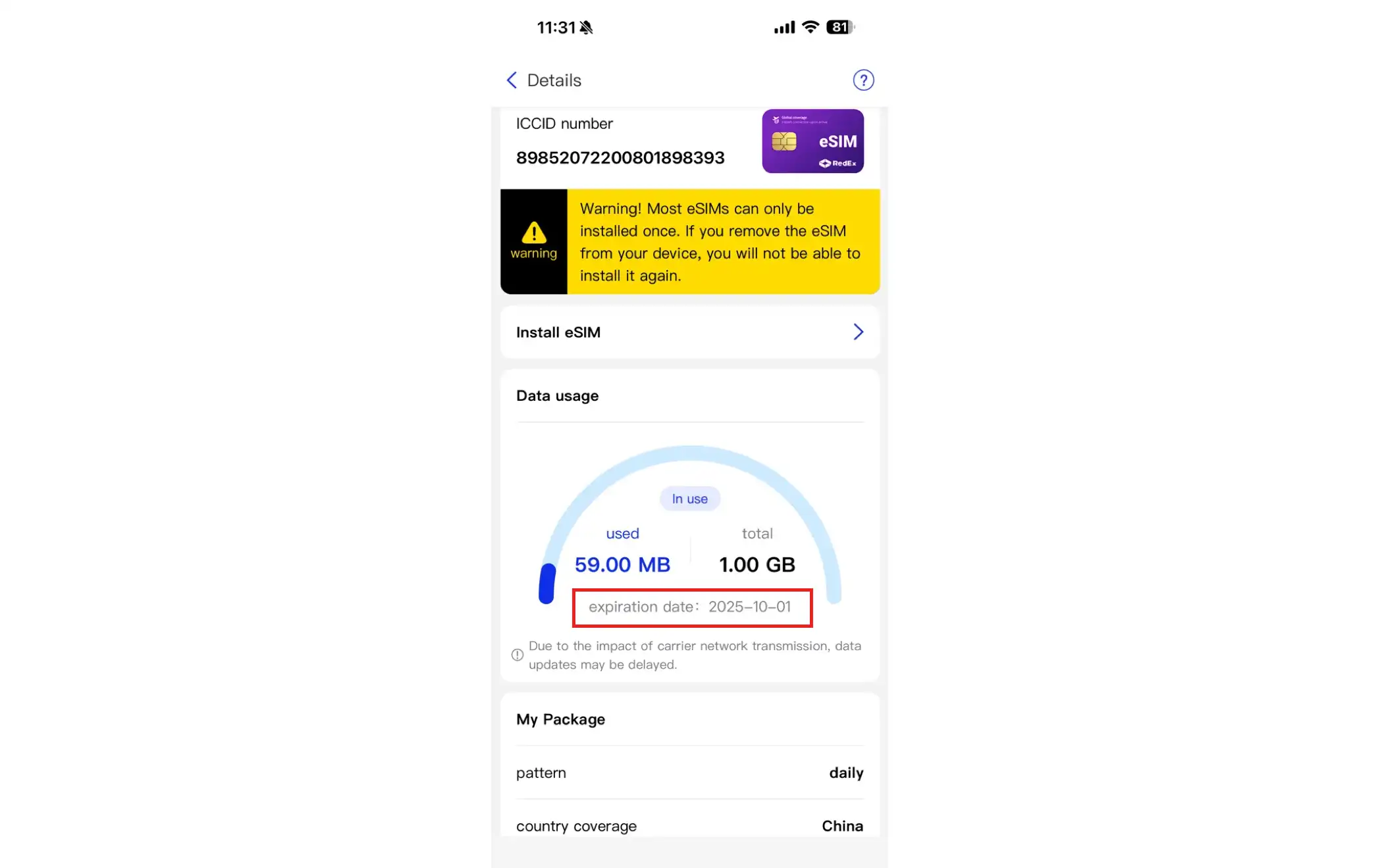
How do you buy and activate eSIM?
I. Purchase of eSIM cards
You can purchase eSIM cards online through the RedEx application (iOS/Android application) or the official network, which links:https://www.redex.vipI don't know.
iOS equipment acquisition and installation process (video tutorial)
Android equipment purchase and installation process (video tutorial)
RedEx application acquisition and installation process (text version)
- Opens the RedEx application or a web of visitors: http://redex.vip, clicking the " Login " button at the top right corner.
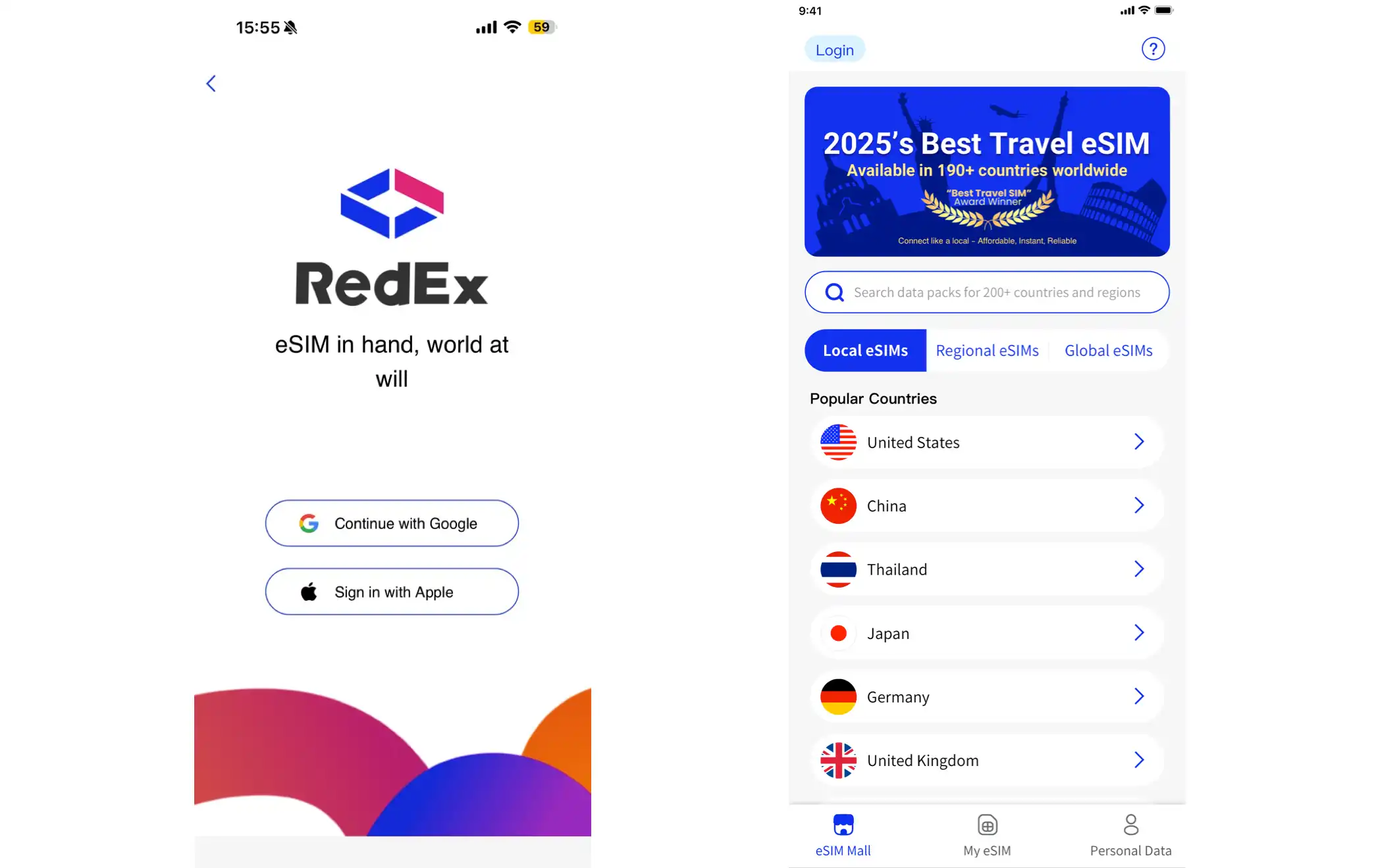
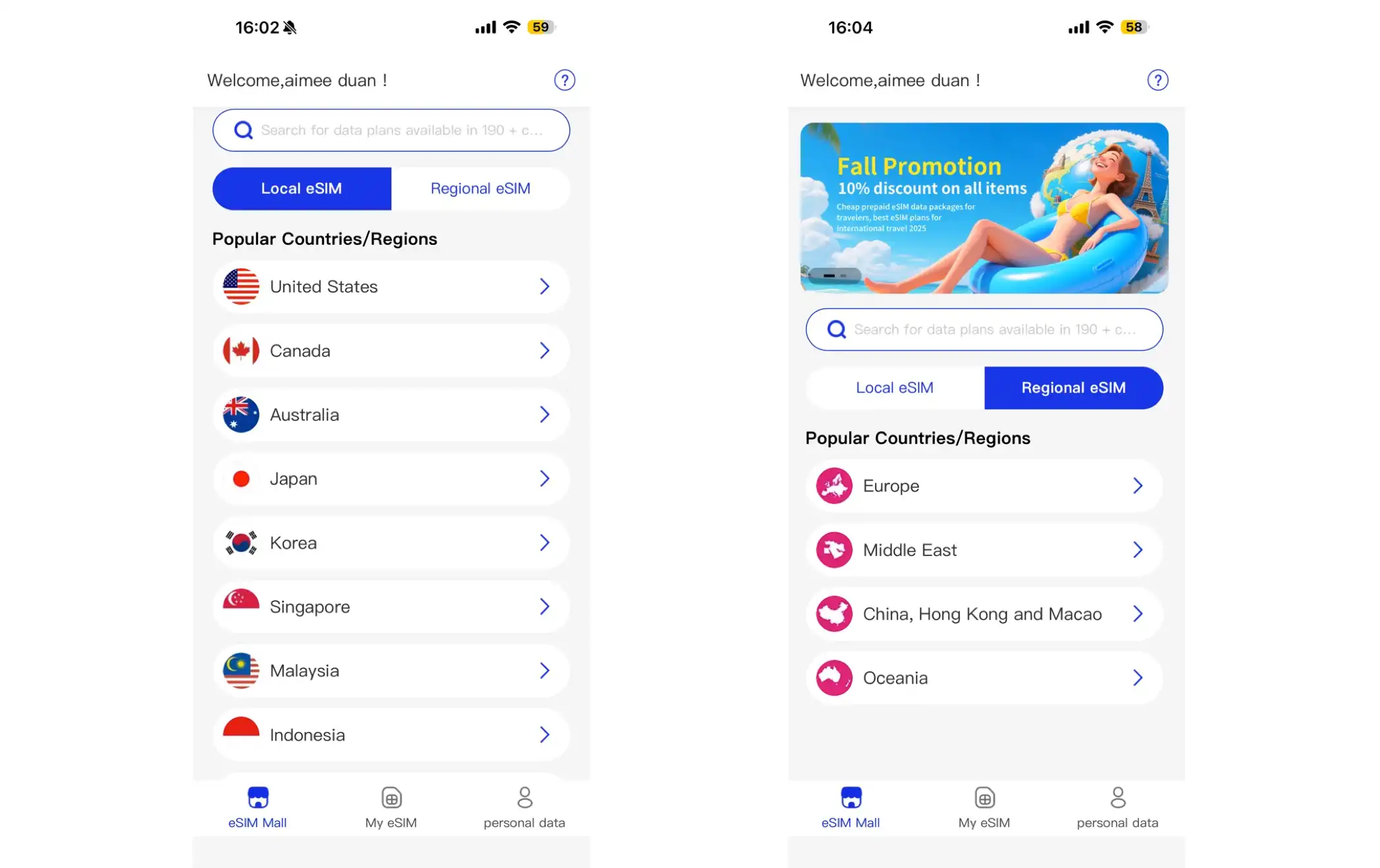
Enter the “eSIM Business City” block and select or manually enter the target country for search. After clicking on the selected country, the page displays all available eSIM packages applicable to that country.
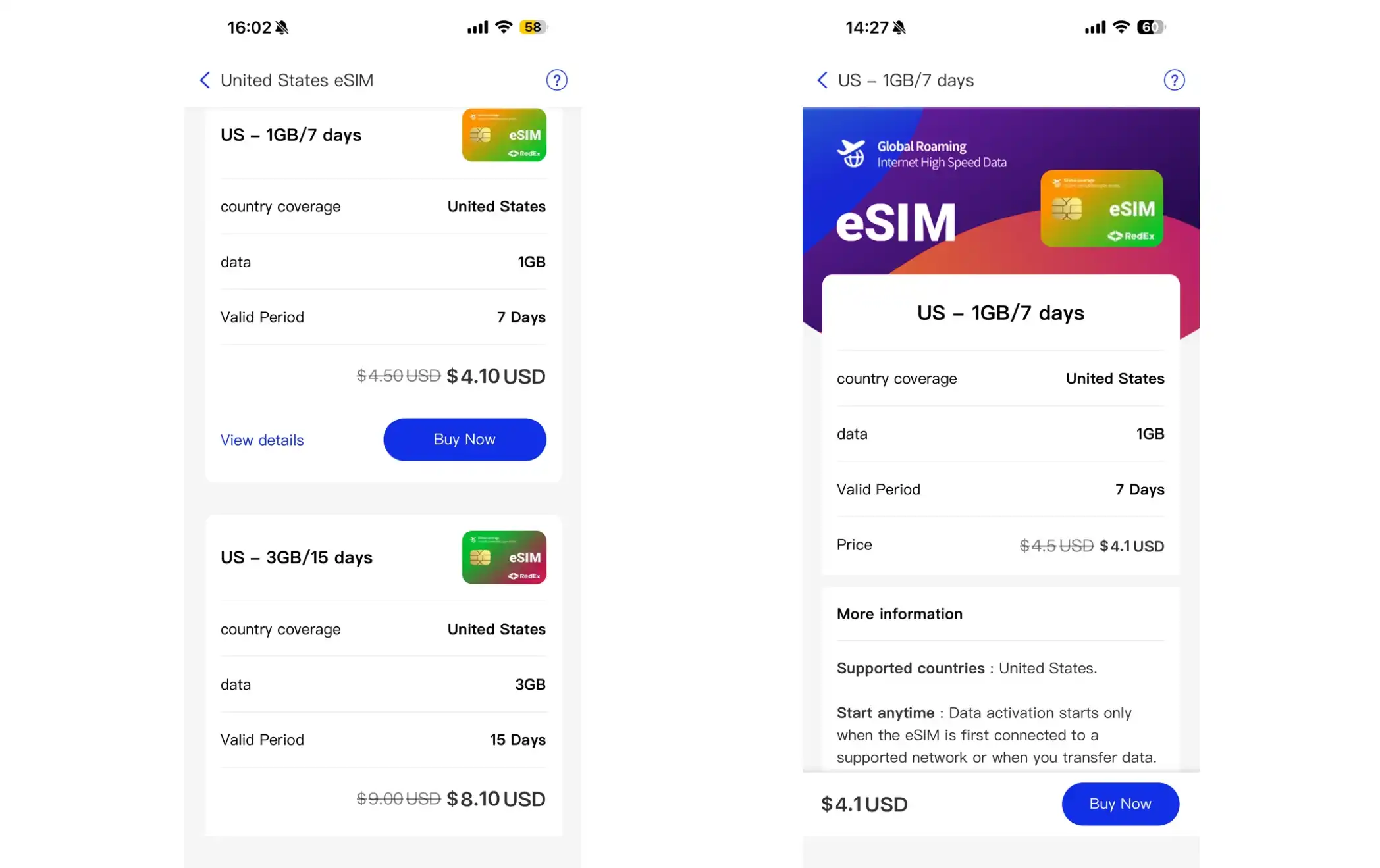
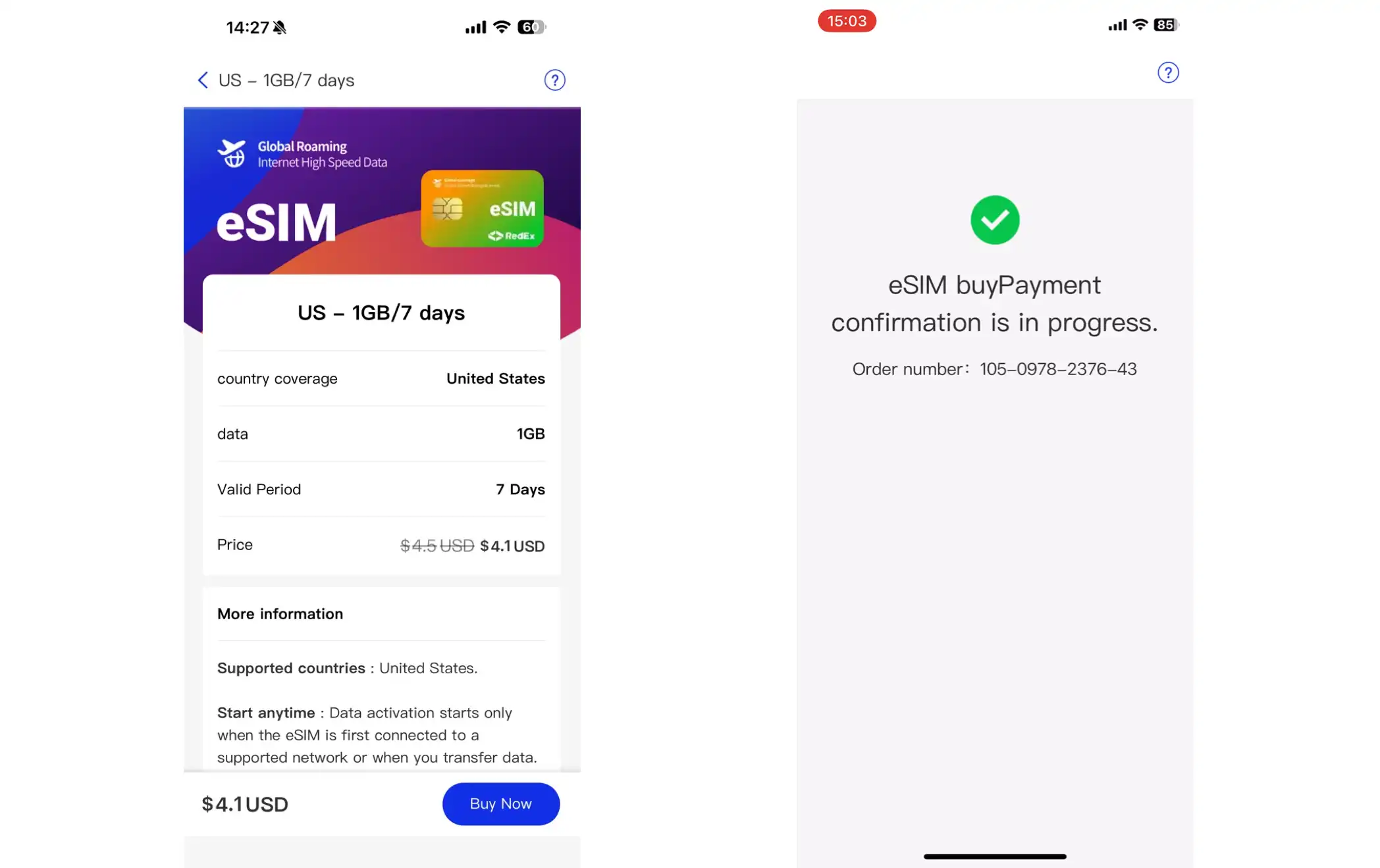
Select the eSIM package you need and click “Purchase immediately”.
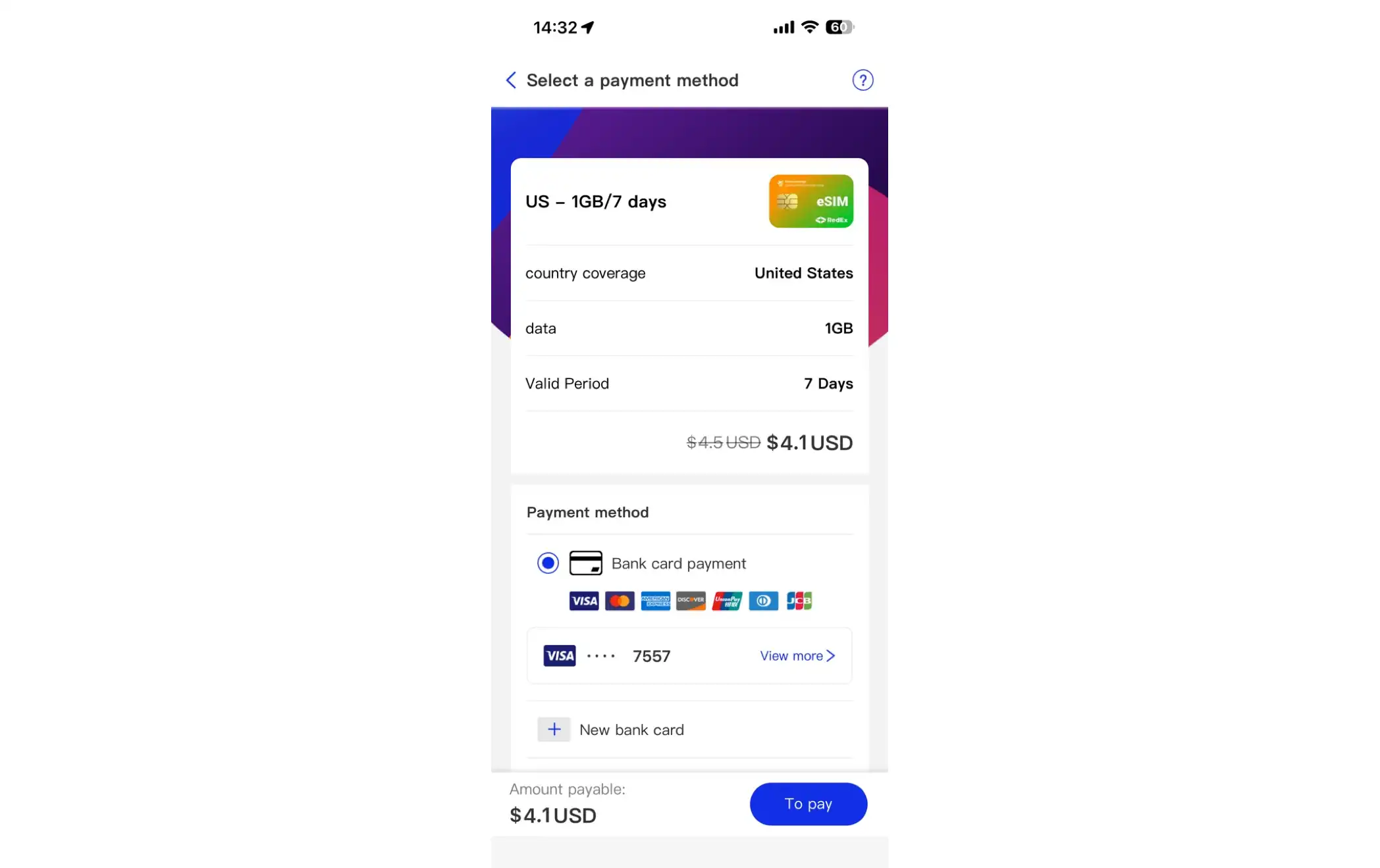
4. Select payment modalities to support both credit/debit card payments and PayPal payments. If a bank card is selected for payment, a bank card must be added (one account can bind more than one card). When adding a new bank card, ensure that the card information is entered accurately (card number, validity period and security code CVC), otherwise payment will fail.
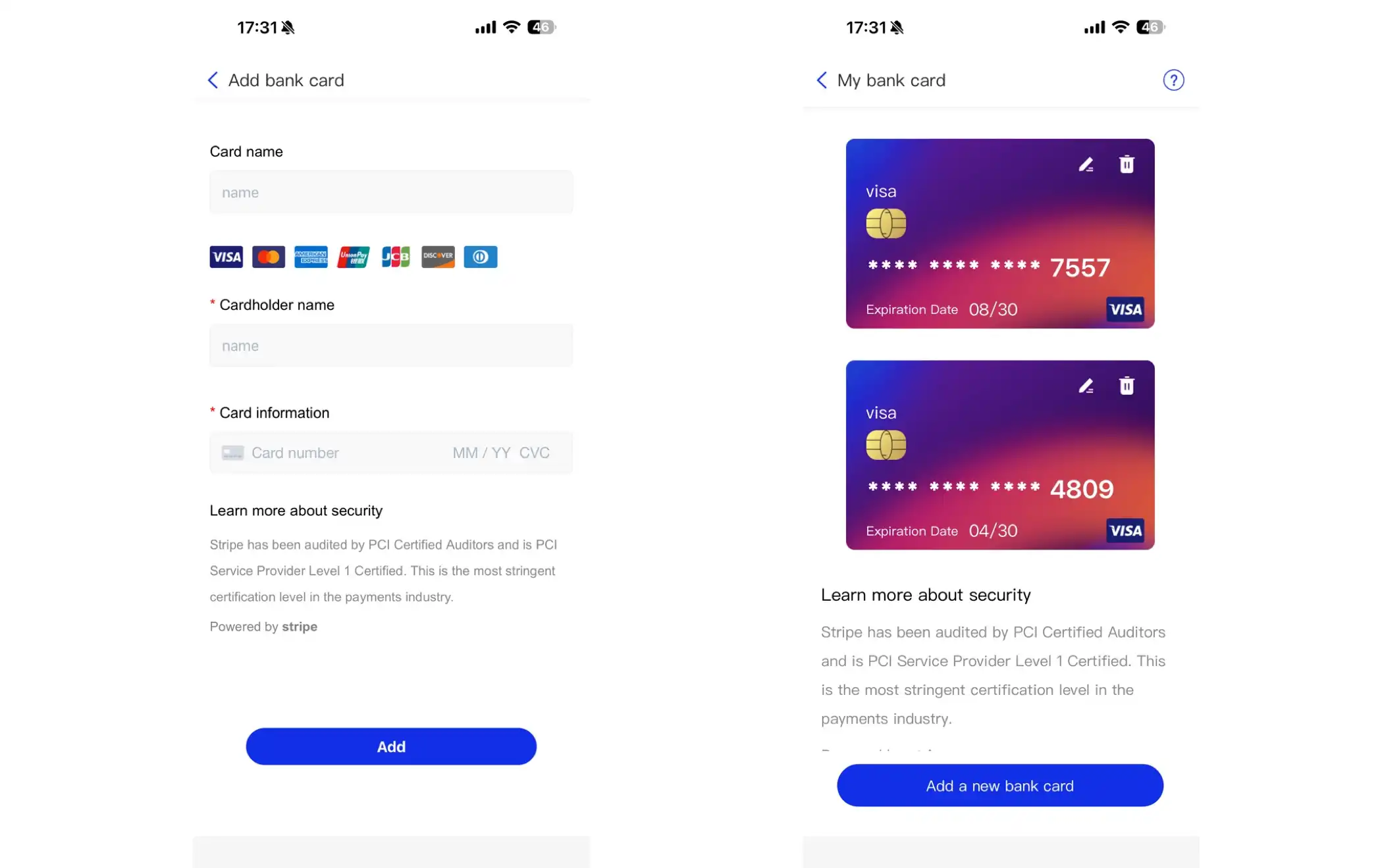
After selection of payment modalities, click “Pay”. A confirmation signal is seen as a successful purchase. Upon completion of the purchase, details of the purchased eSIM card can be obtained by clicking “See eSIM”.
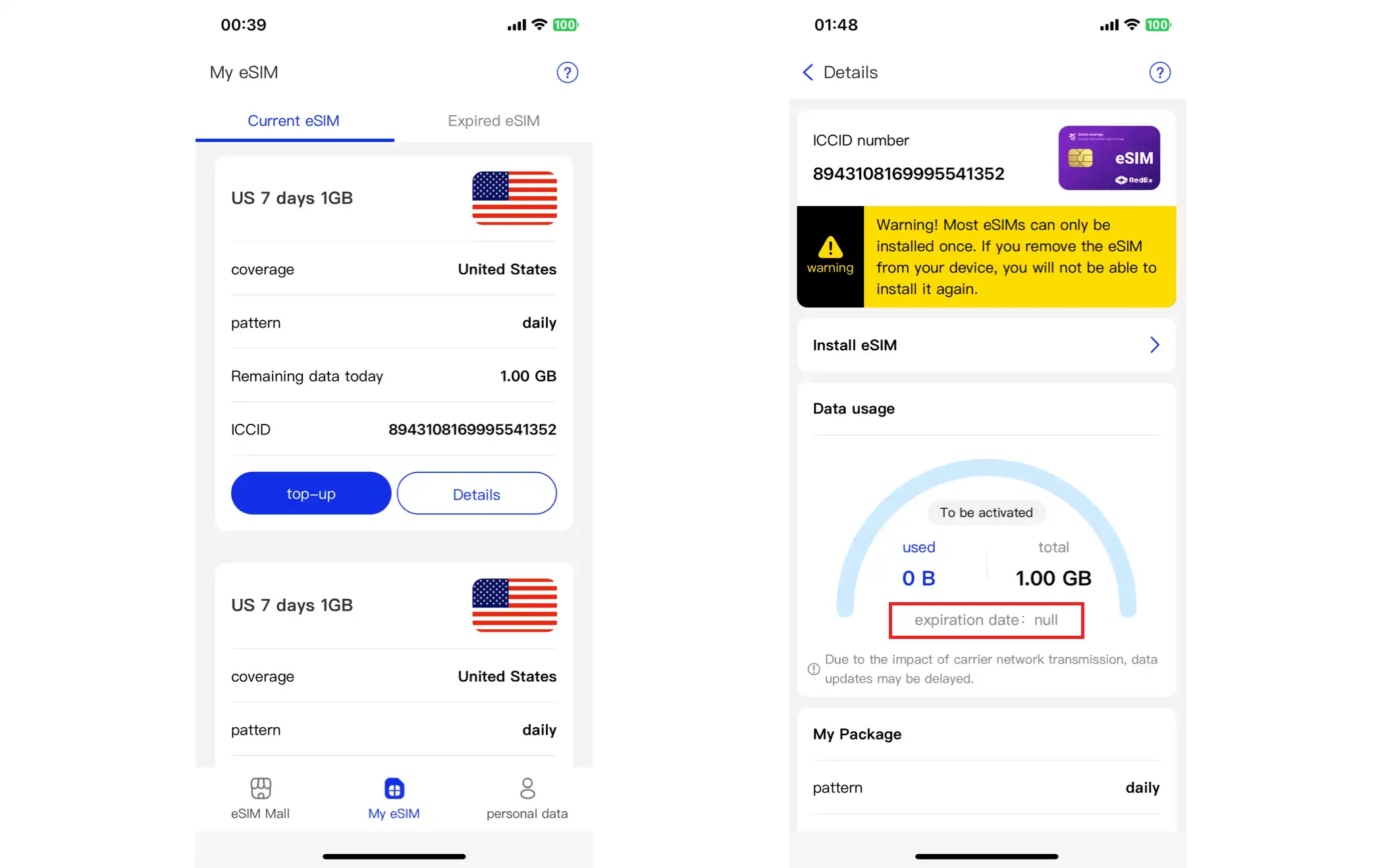
Check my eSIM card.
Once the purchase is completed, you can click " View eSIM " ; you can also enter " My eSIM"-> "Current eSIM" manually. The page list shows all purchased eSIM cards under the account number, clicking on the " Details " button of the target eSIM card to view its details.
Click on “Establishing eSIM” to indicate the key instructions. Upon confirmation, the page will display detailed operational guidance for the two-dimensional code installation and active code installation.
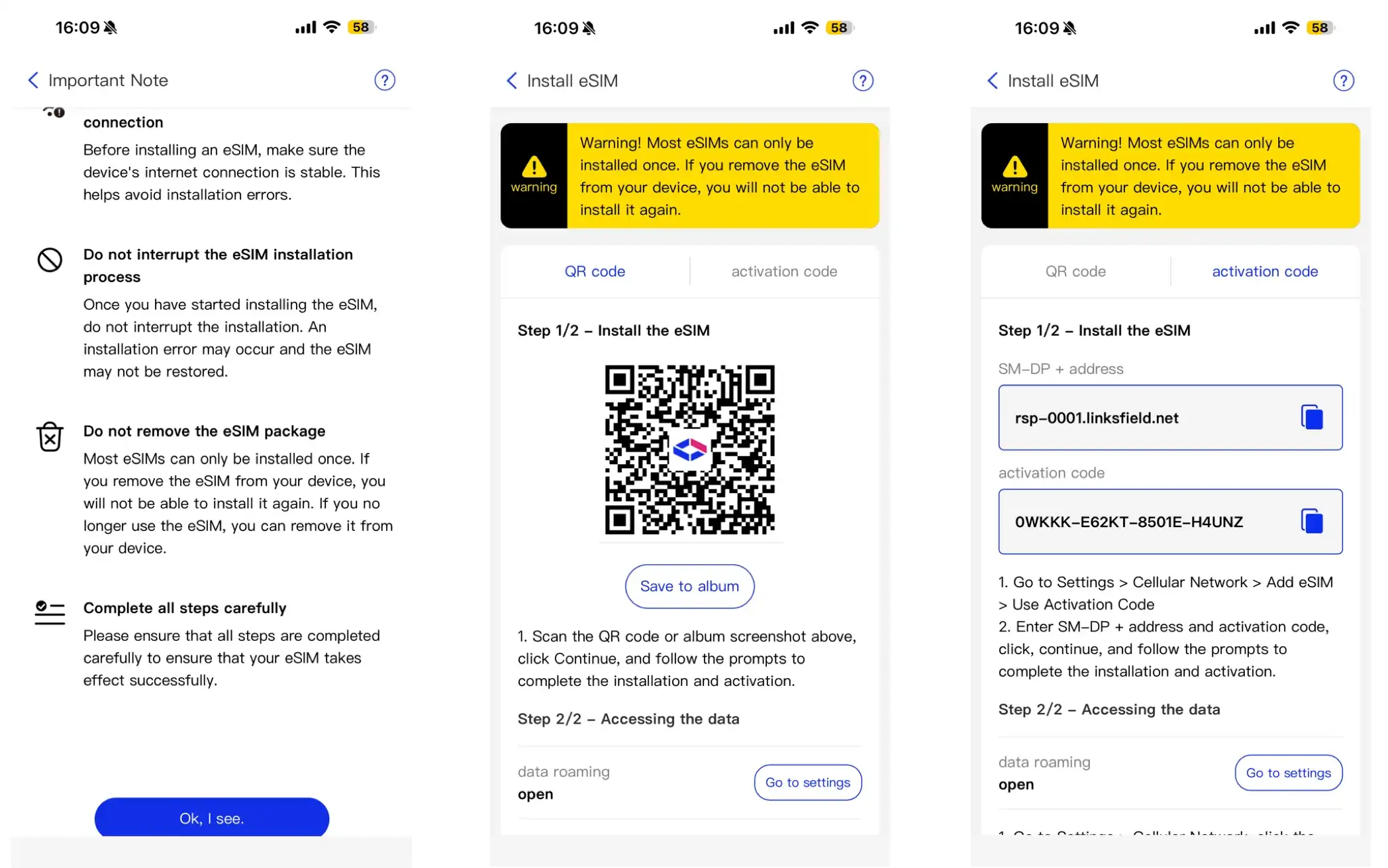
Note:Users can click " Save to Album " to store the 2D code in a mobile phone album for subsequent use.
Simplest way: install with RedEx App one key (no sweep required)
If you're here,This phone to install eSIMThe simplest way to operate is to install directly with App: download RedEx App (iPhone with App Store / Andre with Google Play), log in with the purchase account, enter my eSIM, select your package and click on Install, and App will do it directly on this machine.You don't have to scan 2D. You don't need a second phone.I don't know.
iii. Activate eSIM card after purchase
For an apple iPhone phone that supports eSIM functions, enter Setup-- > Click on Beecom-- > Click on the cellular web page to add eSIM, and then proceed as follows:
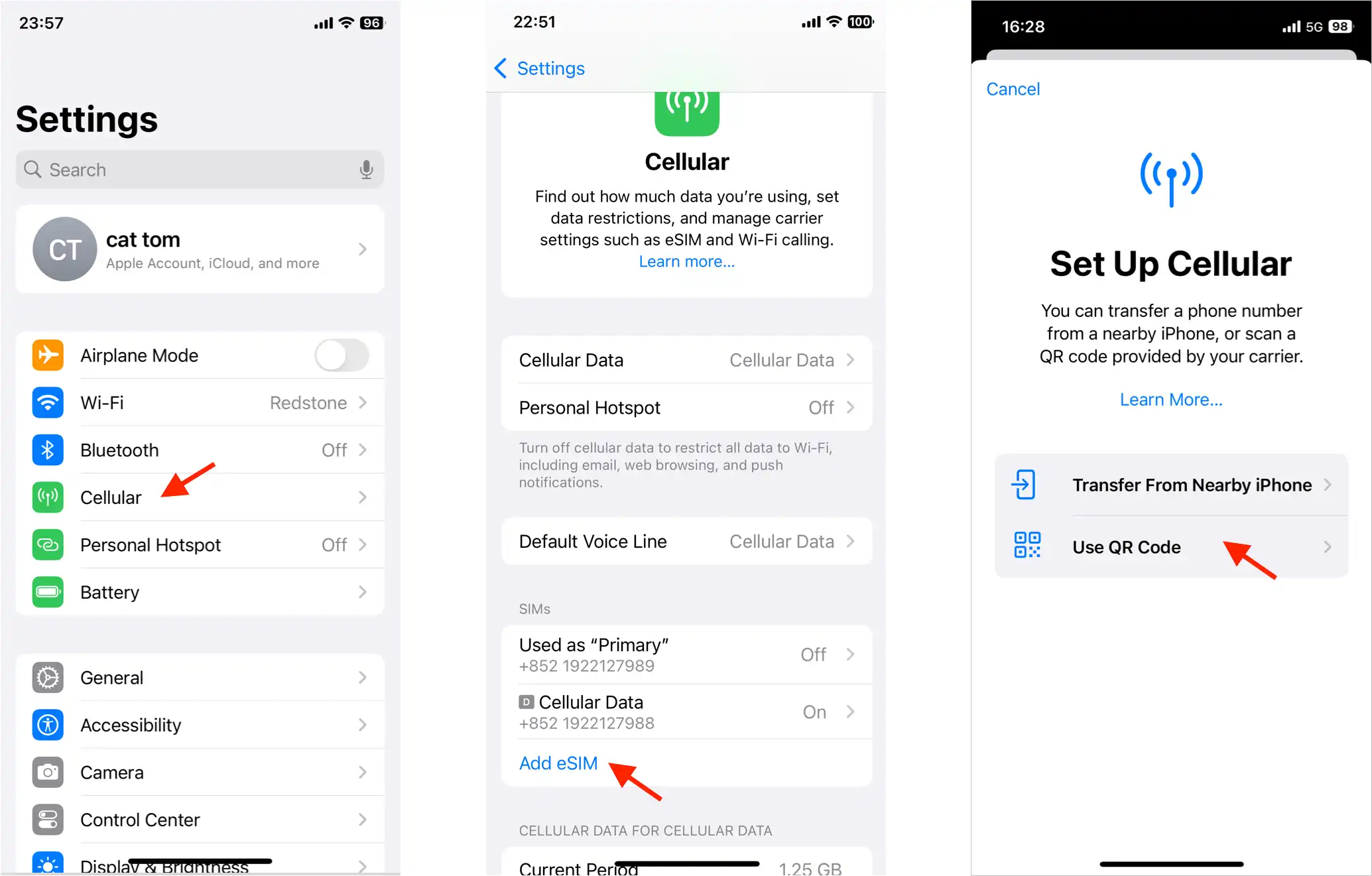
Click " Use 2D " to enter the scanning interface, scan the saved 2D code, and iPhone will automatically download and activate the eSIM card.
Installed on the same mobile phone (when code cannot be coded):If you're going to install this cell phone, you can't scan the two-dimensional code on the screen. Please click at the bottom of the two-dimensional interface.Manual Input DetailsFill in SM-DP+ AddressandActivate Code(Can be viewed and copied on the details page of my eSIM card) and then finished installation by clicking on Next.
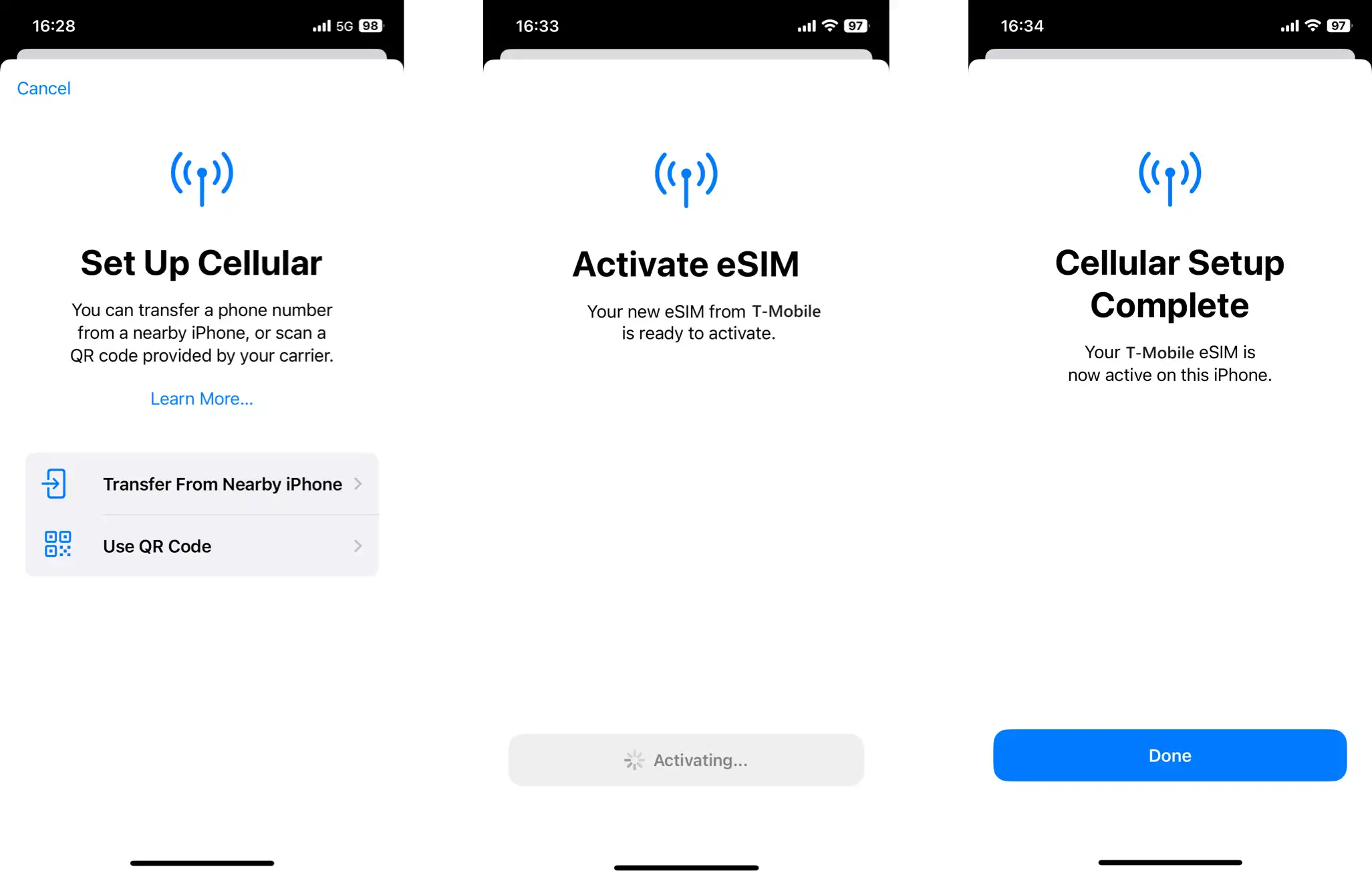
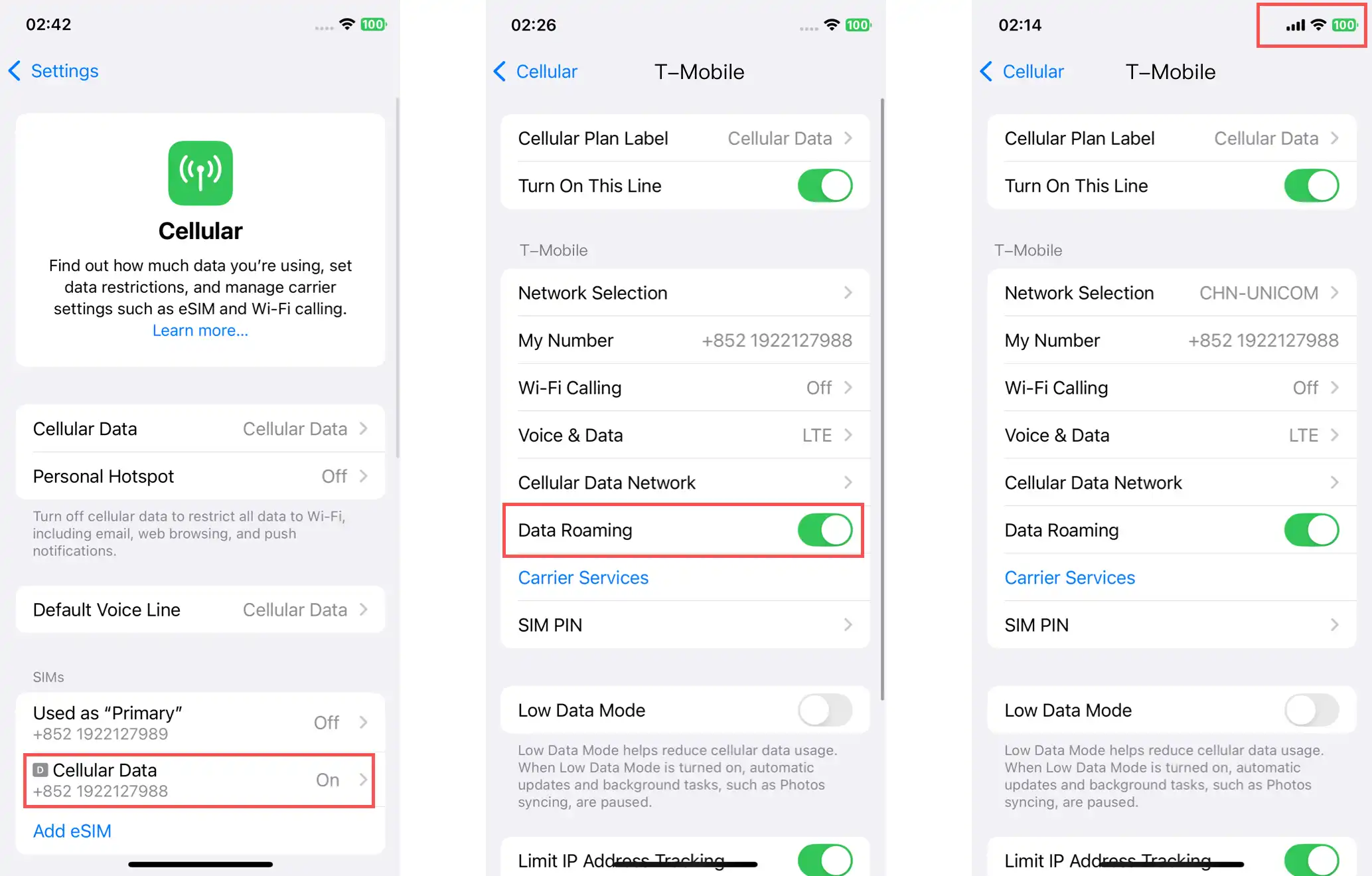
Click " Done " to return to the cellular network setting interface and the new eSIM card will be displayed as activated. Click on its detailed page to open the Data Rover and the device will be connected properly.
iv. Activate eSIM after purchase
For an Android mobile phone that supports eSIM, enter Settings - > Clicking on the Web and Internet - > Clicking on the SIM card page - > Clicking on Adding SIM cards, then proceed as follows:
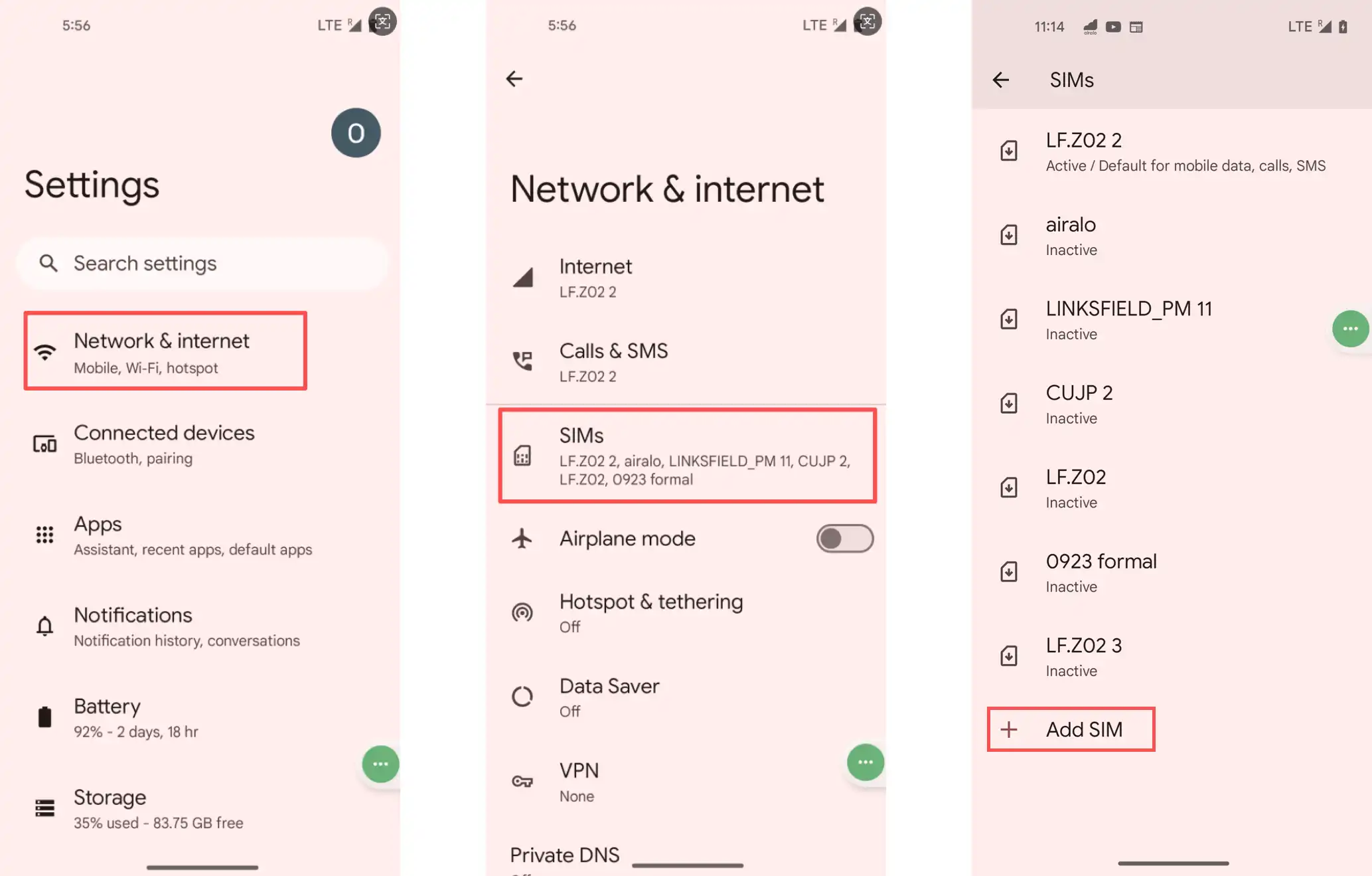
Click " Set eSIM" to access the scan 2D page, and then click " Scan from a photo " .
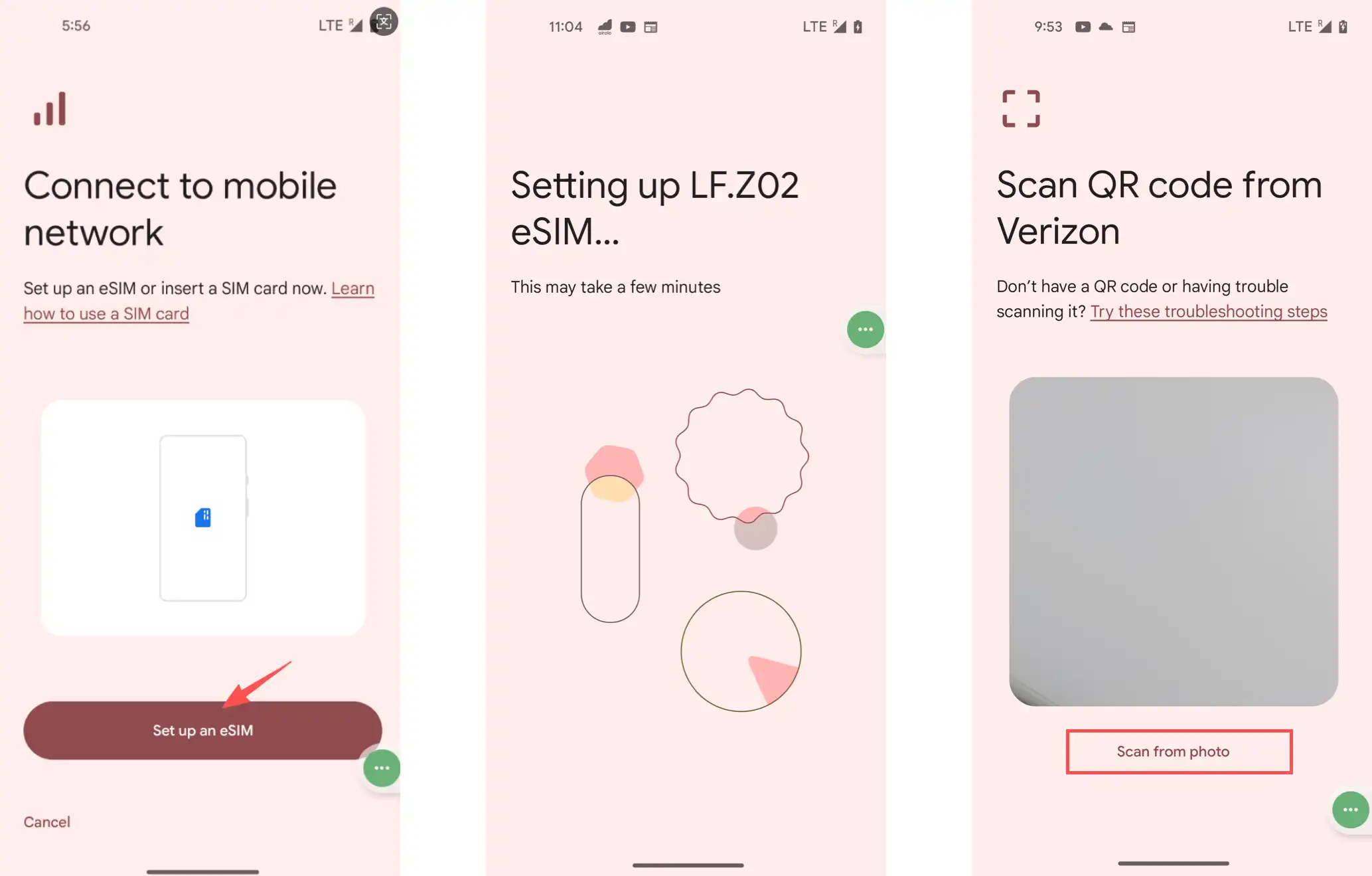
Select the two-dimensional code of the eSIM card that was purchased and stored prior to the use of the mobile phone album, and the system will start with the installation process, which will start with a hint " set your ***SIM card". Click Settings to start the installation and when the installation is complete the system will alert to activate the eSIM card.
Installed on the same mobile phone (when code cannot be coded):Add eSIM interface selection if it is not possible to scan (e.g. currently installed mobile phone)Manual Input(Different branding may be “need for help”/ “manual input activation code”), filled in SM-DP+ AddressandActivate Code(See the details page of my eSIM card)
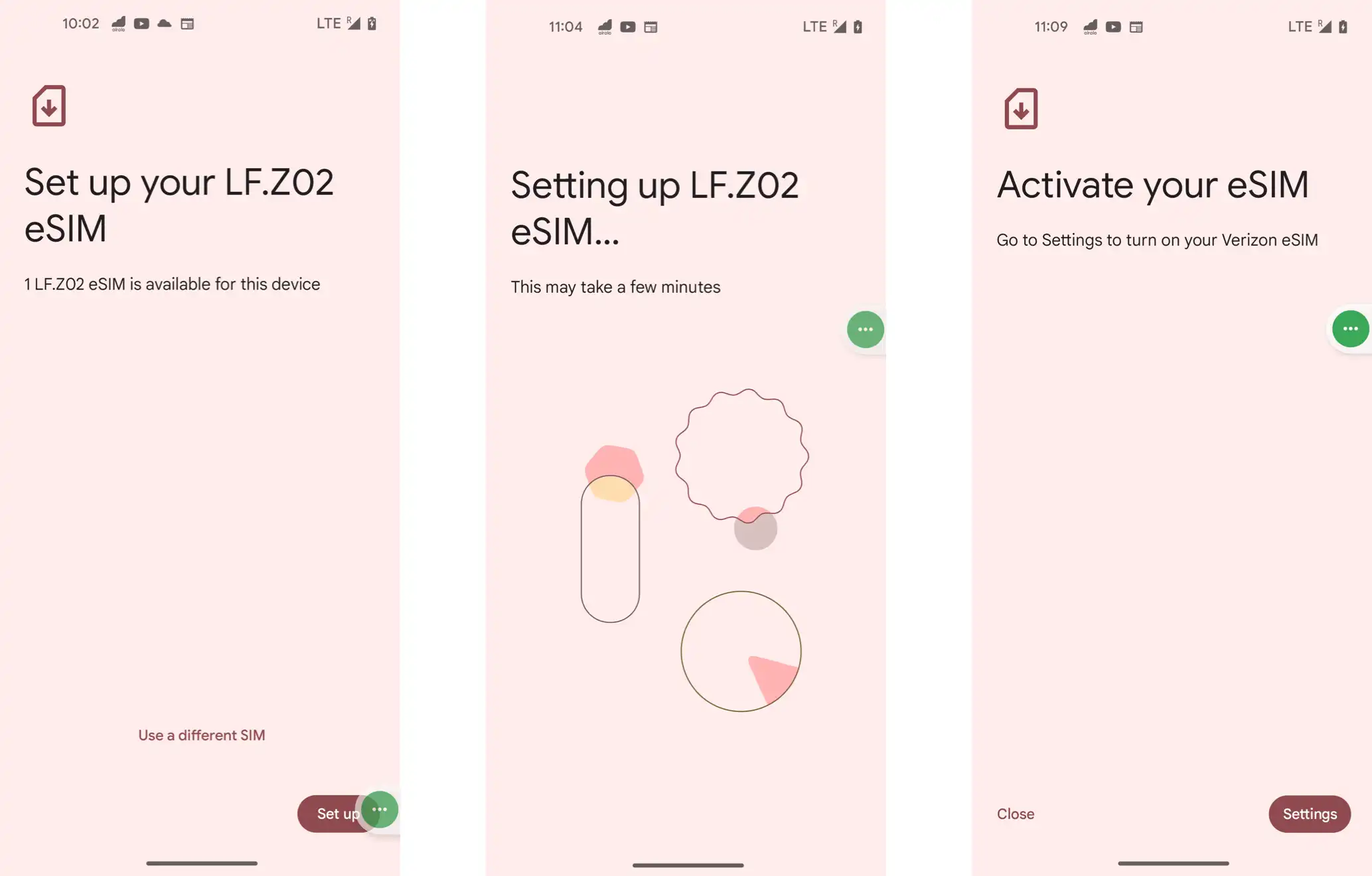
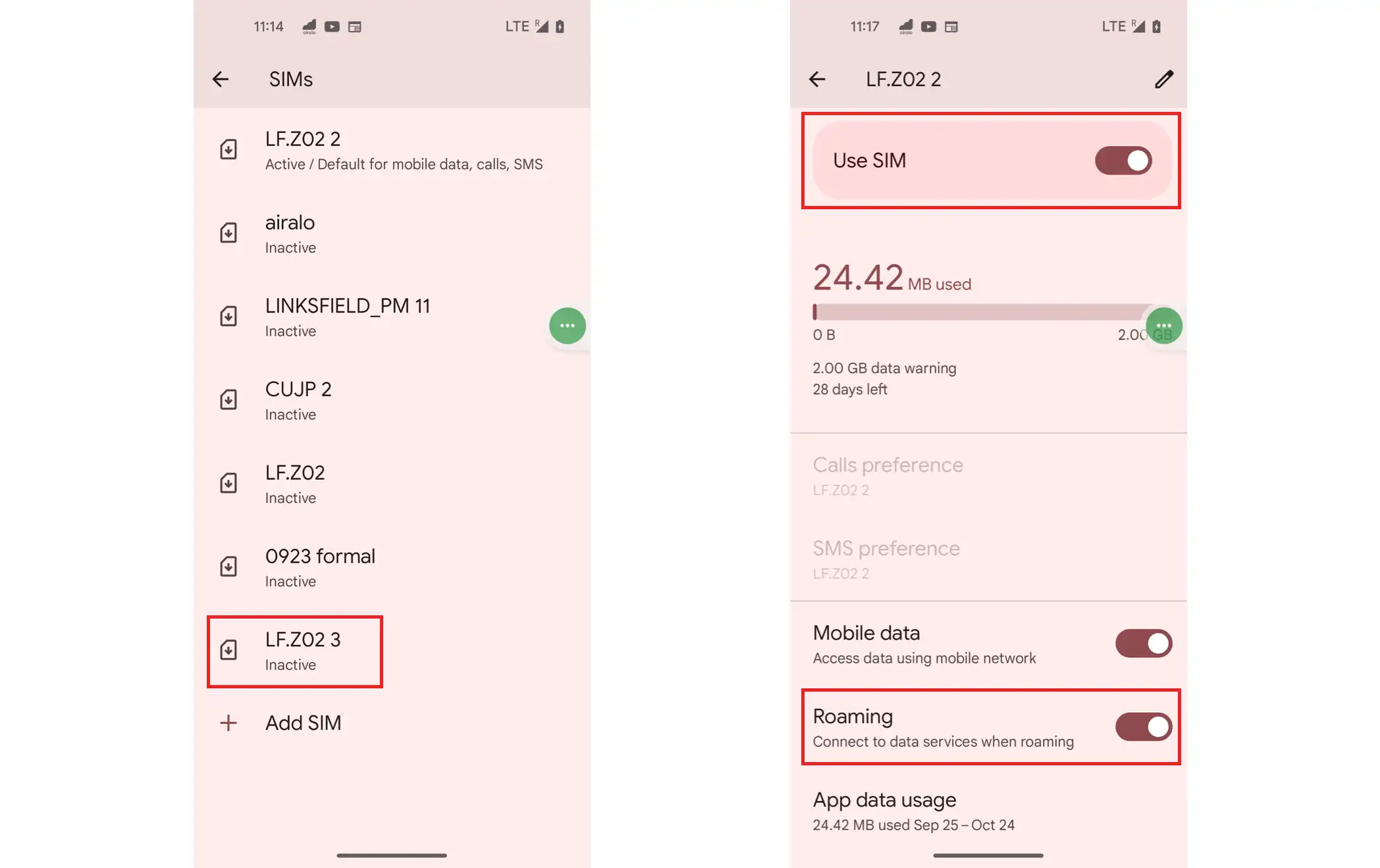
Click Settings to enter the list of cell phone SIM cards, select the added eSIM cards and enter the SIM card settings page. Enables the " Use SIM card " option and " Data Wandering " to activate the eSIM card successfully.
v. How do you charge eSIM cards?
Enter my eSIM-> Current eSIM page and click the " Filling " button for the purchased eSIM card.
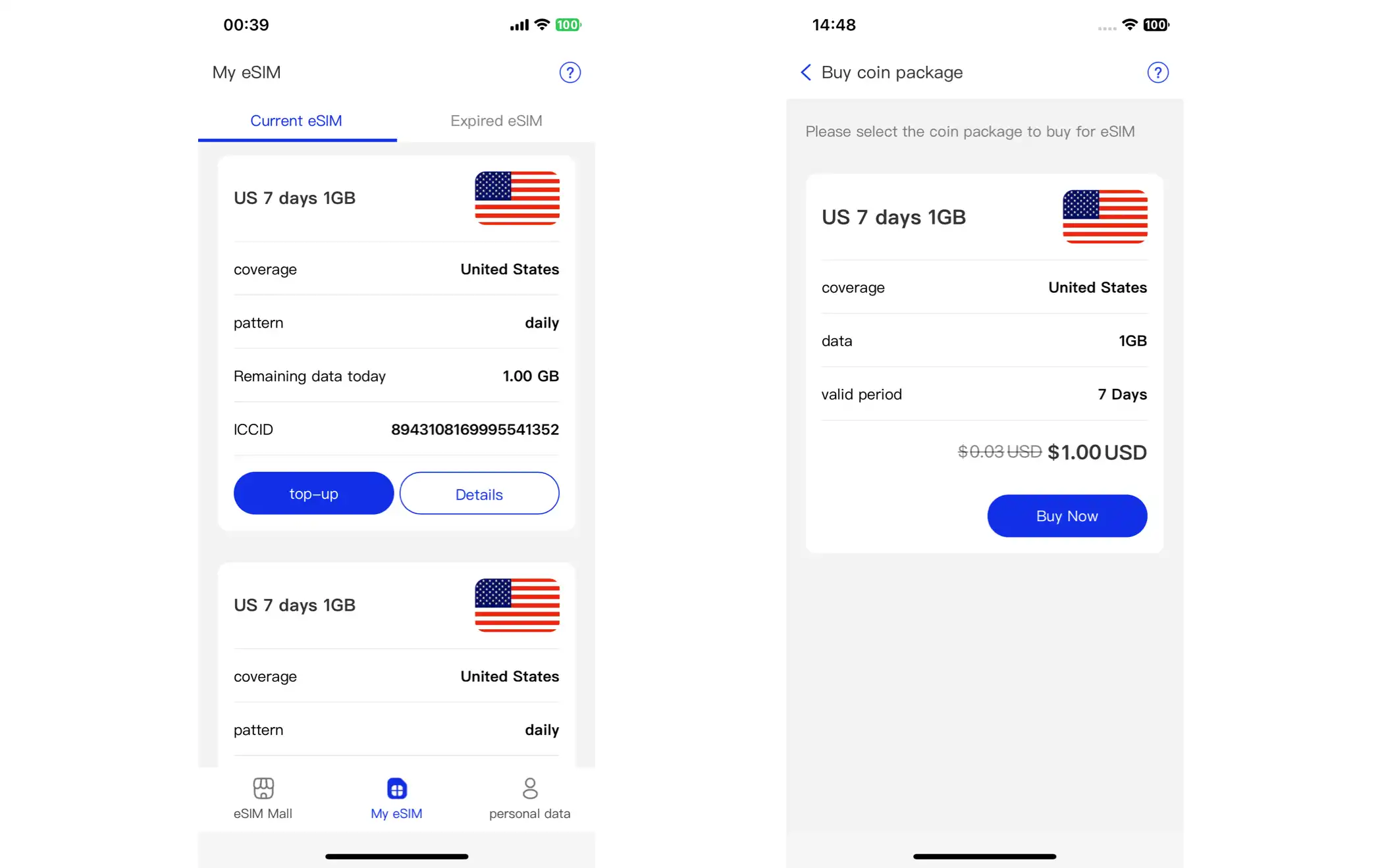
Click “to purchase immediately”, select the payment mode, and then click “to submit the order”.
Upon completion of the purchase, enter the "My ESIM"-> "Current eSIM"-> "Details" page, which will be updated according to the full value.