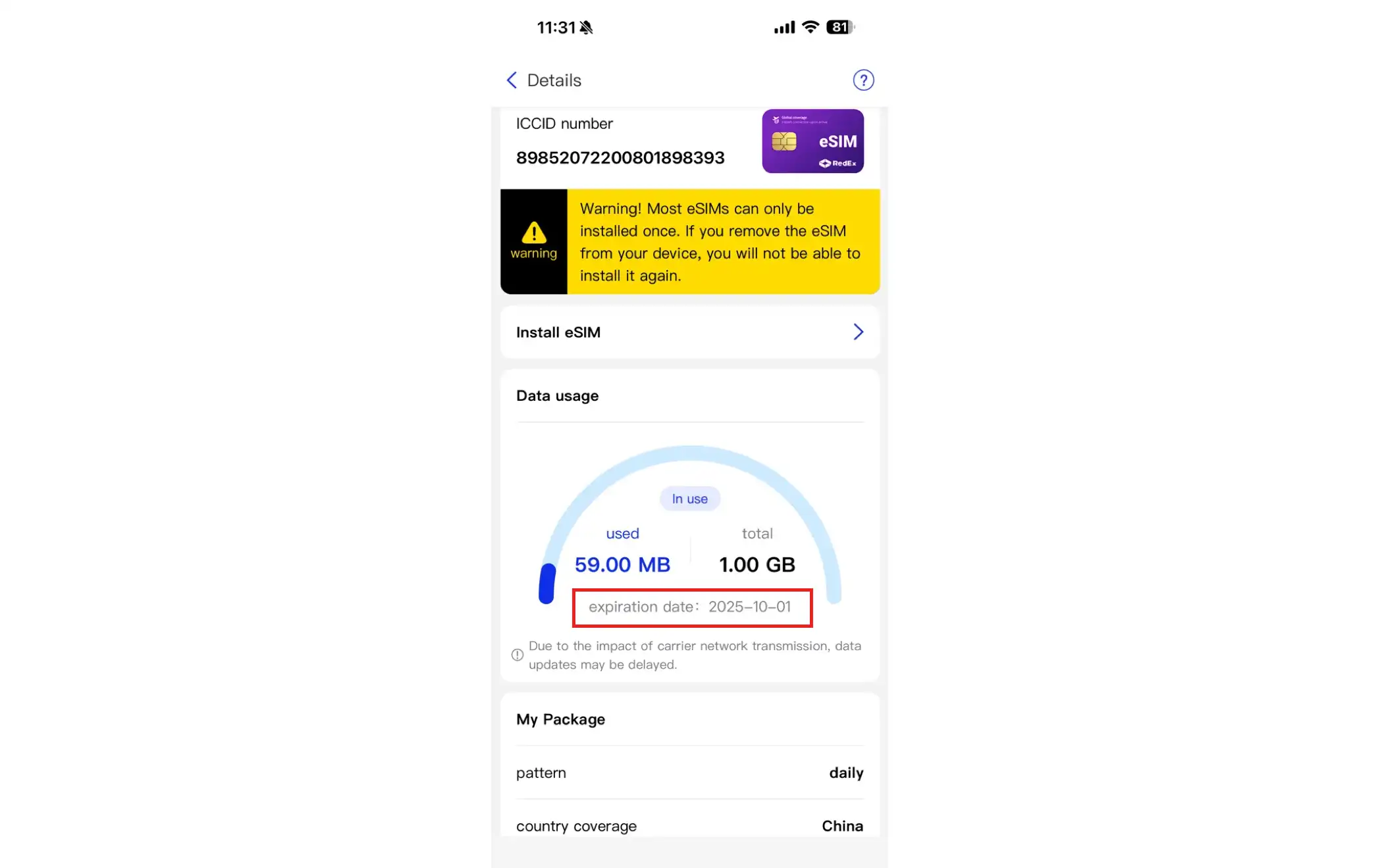
How do I purchase and activate an eSIM (manual activation)?
1. Purchase an eSIM card
You can purchase an eSIM card through the RedEx app (available for iOS/Android) or online at the RedEx website: https://www.redex.vip .
iOS Device Purchase and Installation Process (Video Tutorial)
Android Device Purchase and Installation Process (Video Tutorial)
RedEx Application Purchase and Installation Process (Text Version)
- Open the RedEx app or visit the website: http://redex.vip, and click the "Login" button in the upper right corner. There are two login methods: Google account login and Apple account login.
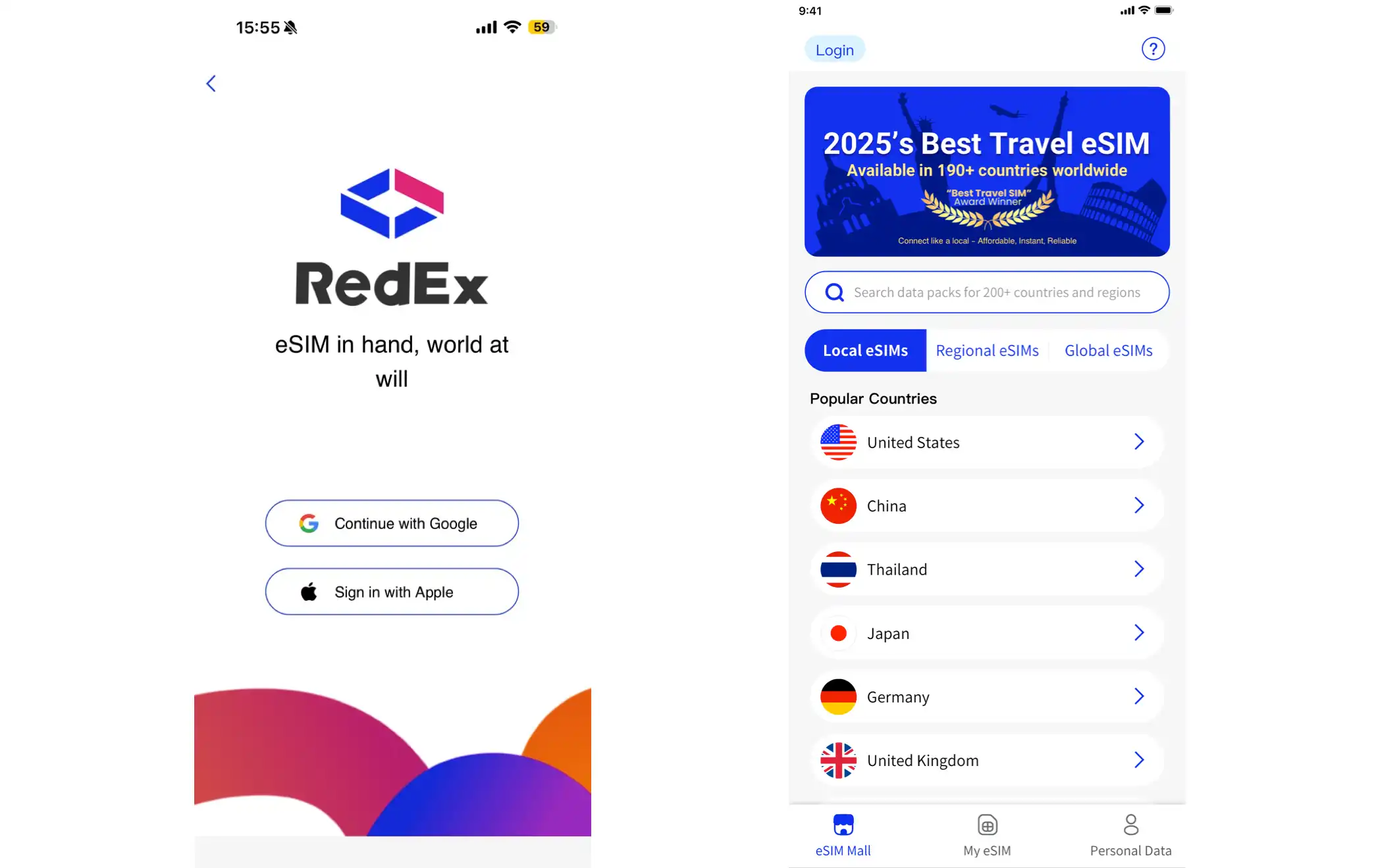
2. Enter the "eSIM Mall" section and search for your target country using the drop-down menu or by manually entering it. After clicking on the selected country, the page will display all available eSIM plans applicable to that country.
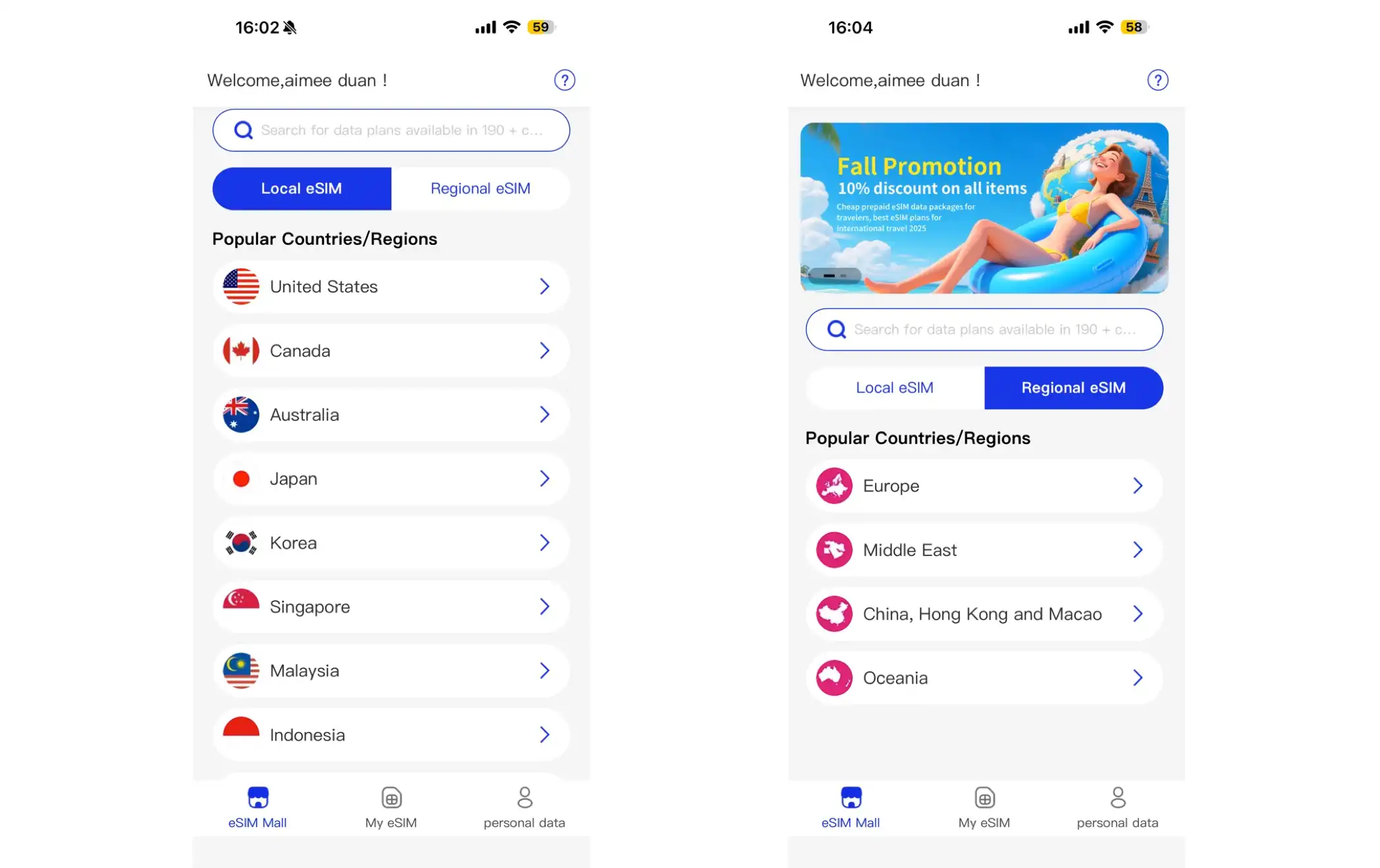
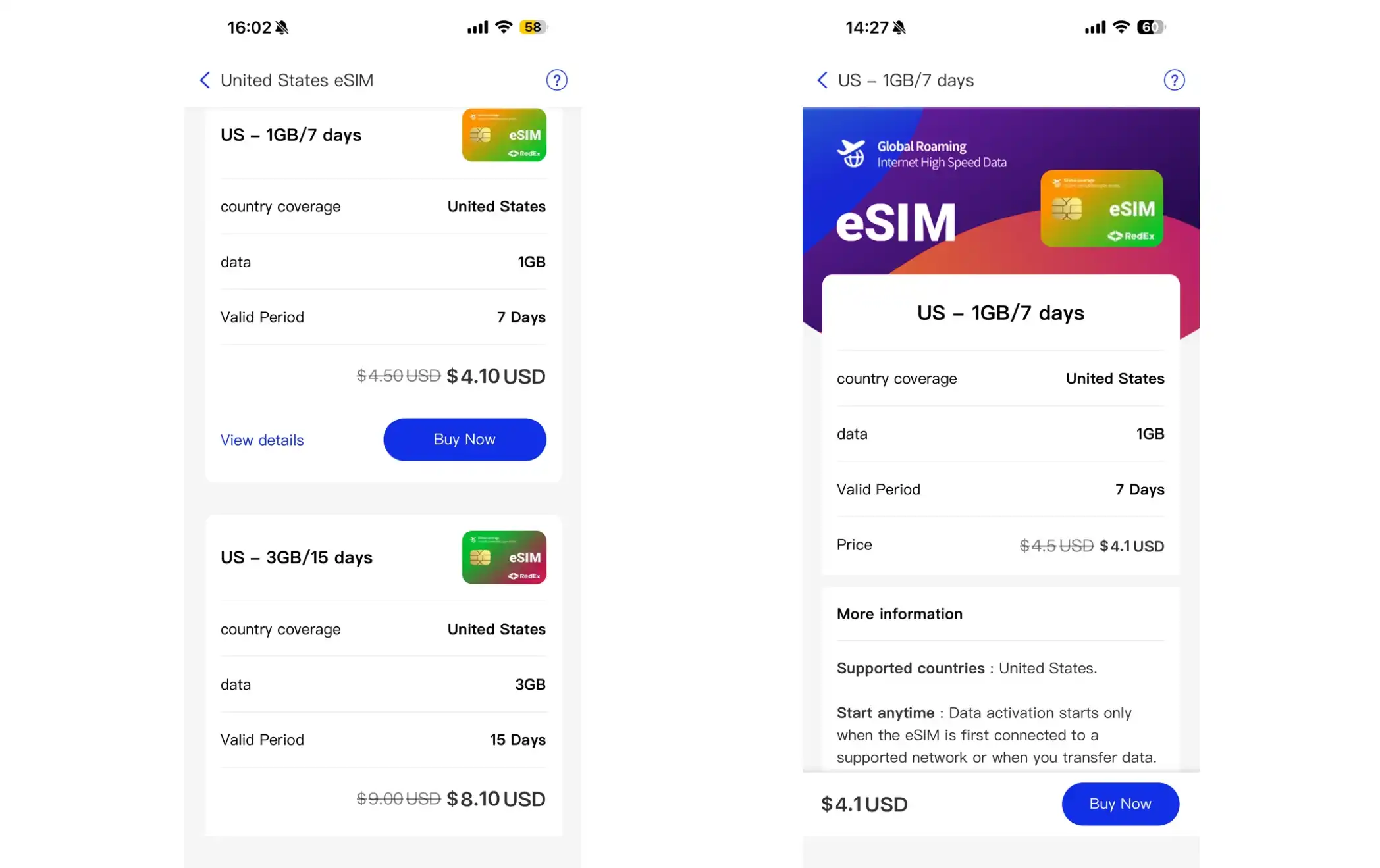
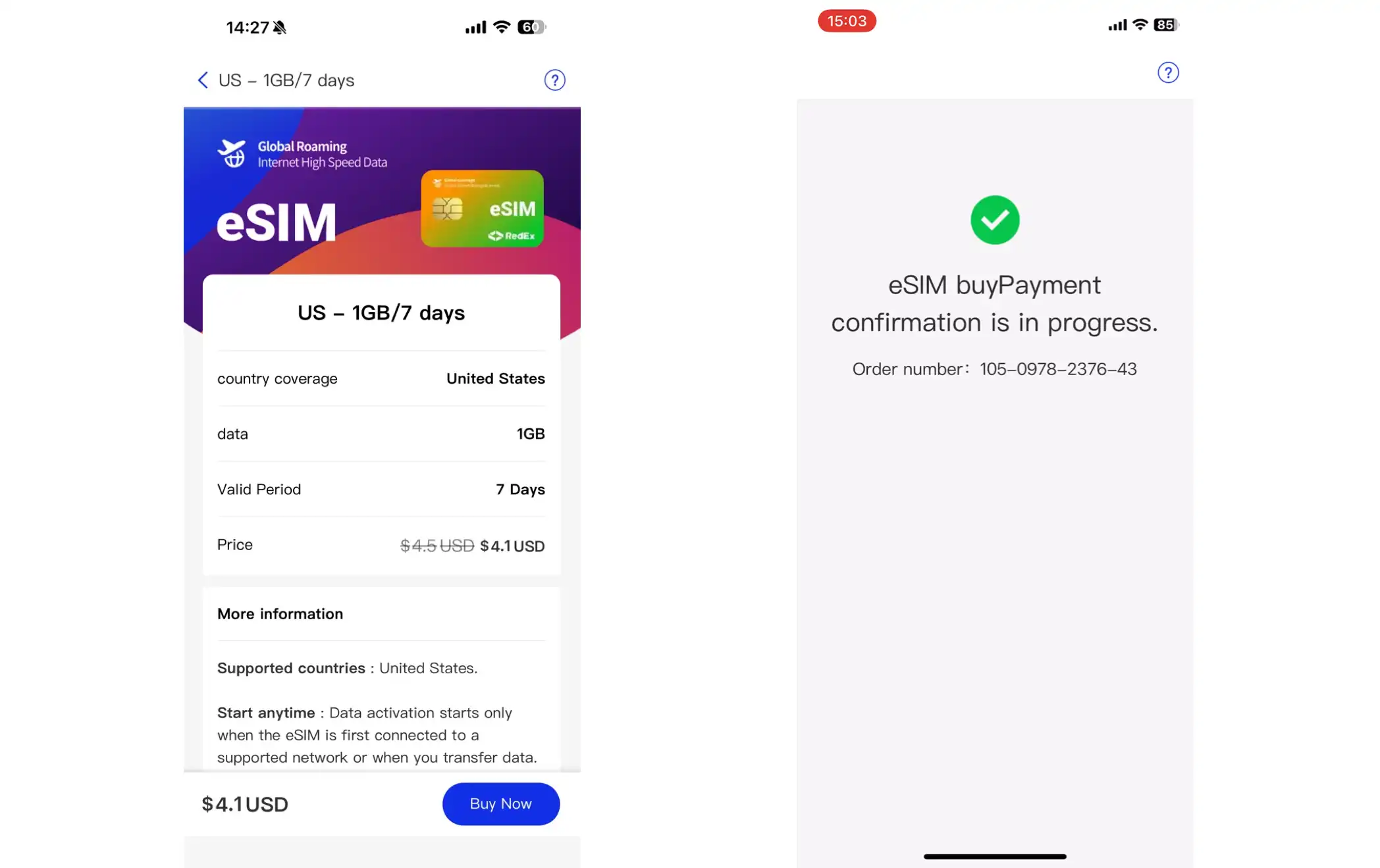
3. Select the eSIM plan you need and click "Buy Now".
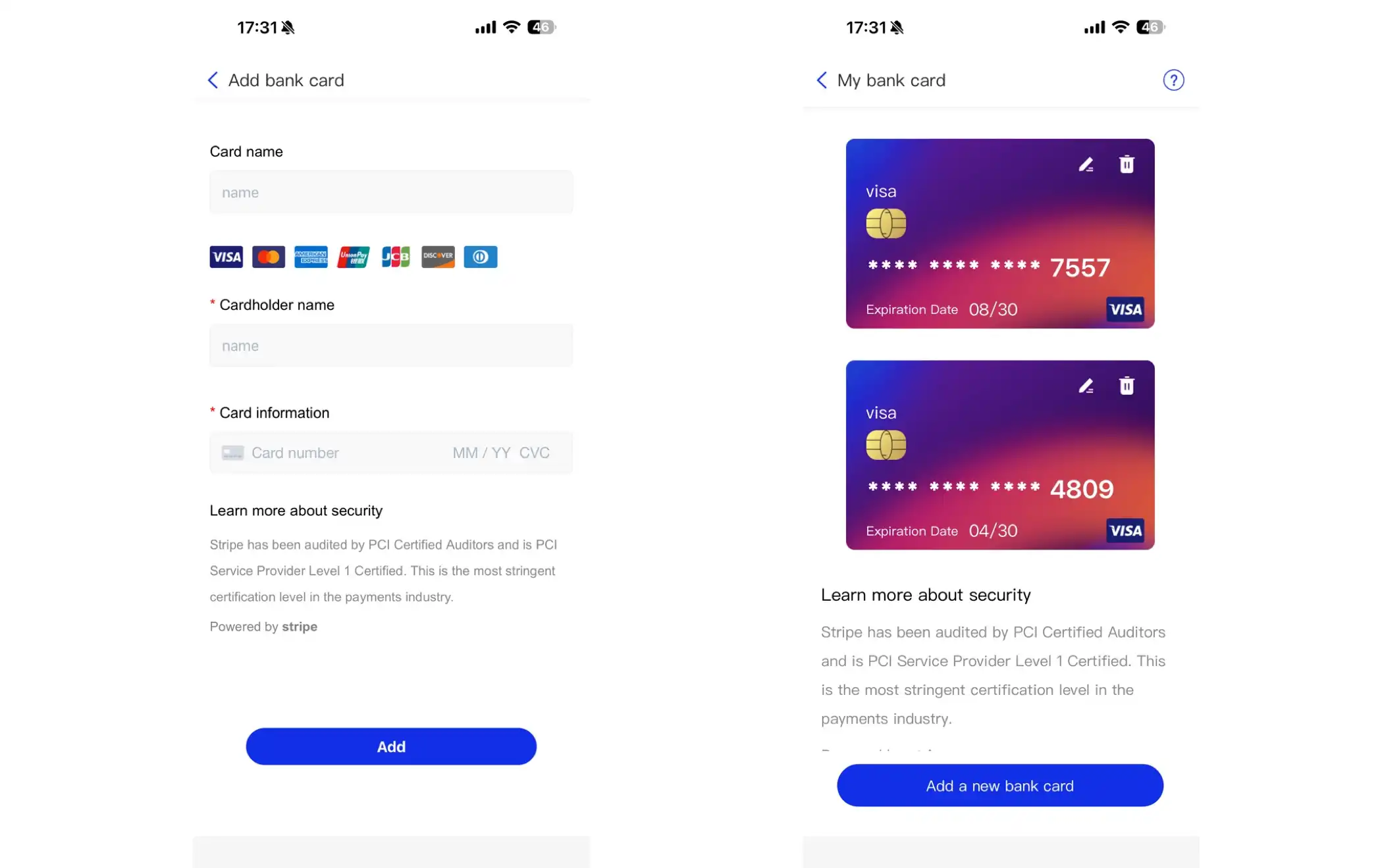
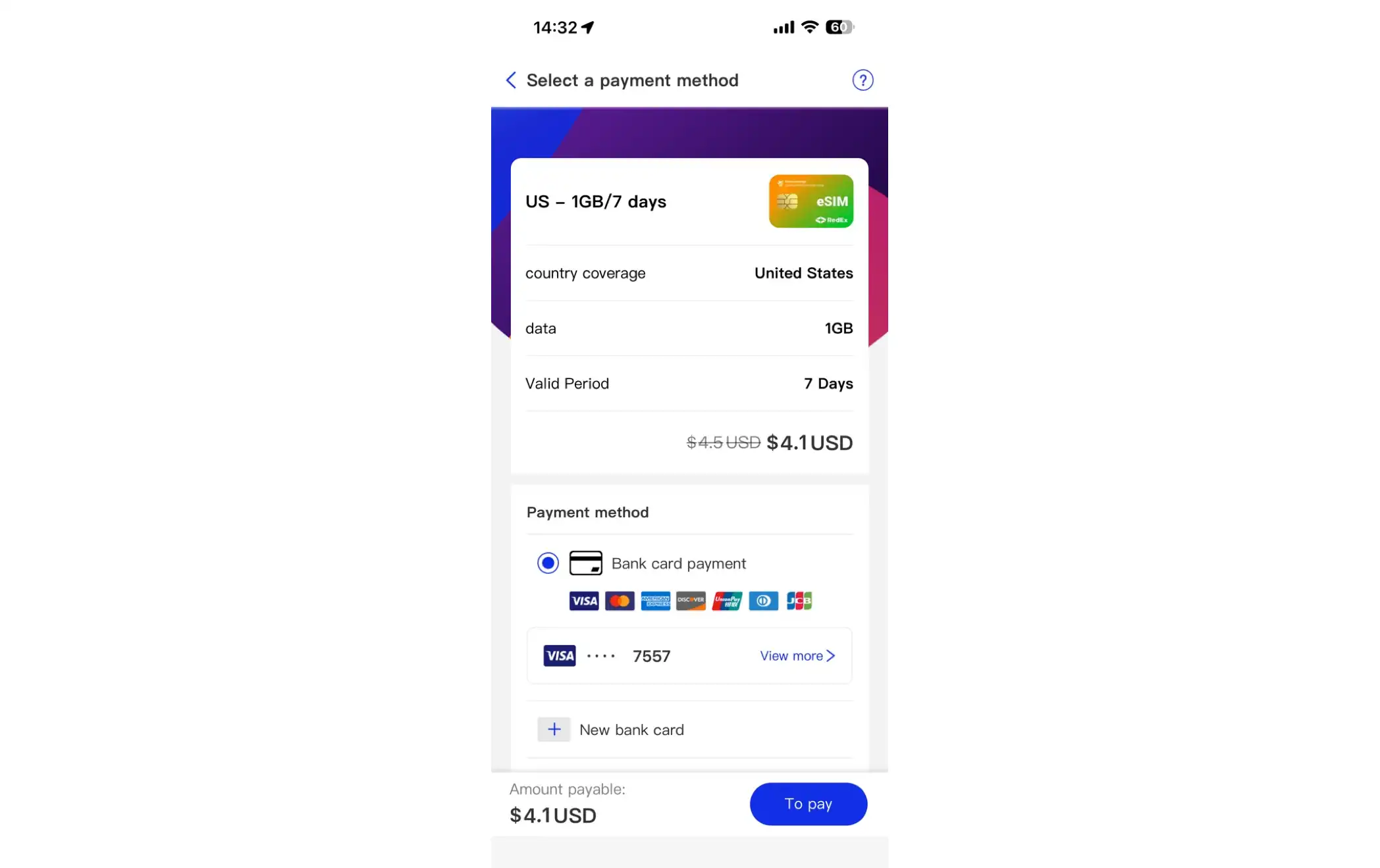
4. Choose a payment method. Credit/debit card and PayPal are supported. If you choose bank card payment, you must add a bank card first (one account can be linked to multiple bank cards). When adding a new bank card, please ensure that you enter the card information accurately (card number, expiration date, and security code CVC), otherwise the payment will fail.
5. After selecting a payment method, click "Pay". A confirmation message indicates a successful purchase. After purchase, you can click "View eSIM" to check the detailed information of your purchased eSIM card.
2. View my eSIM card
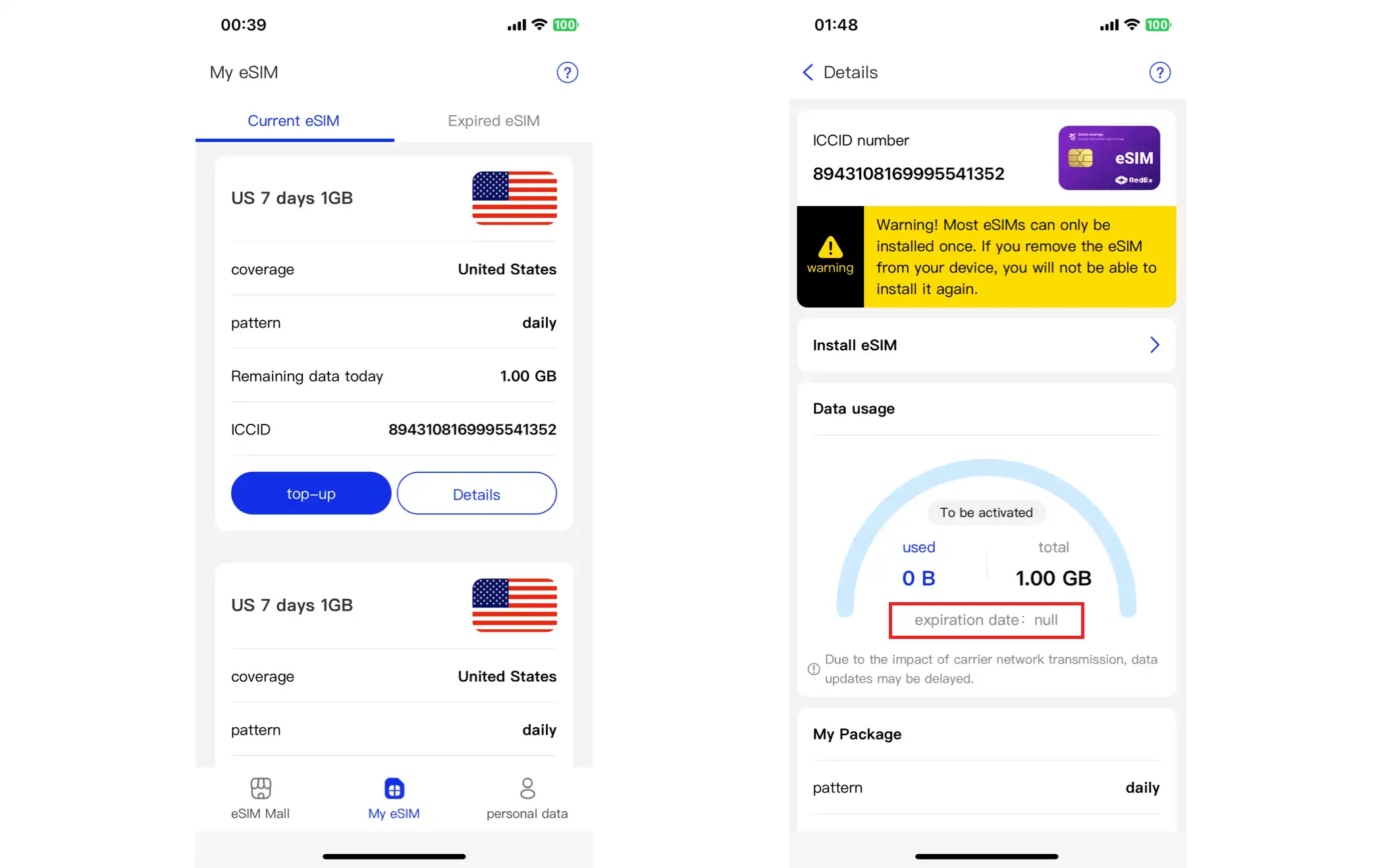
1. After purchase, you can click "View eSIM"; or you can manually go to "My eSIM" -> "Current eSIM" page. This page will display a list of all eSIM cards purchased under your account. Click the "Details" button for the target eSIM card to view its specific information.
2. Click “Install eSIM”. The system will first prompt you to review important instructions. After confirmation, the page will display detailed instructions for both QR code installation and activation code installation methods.
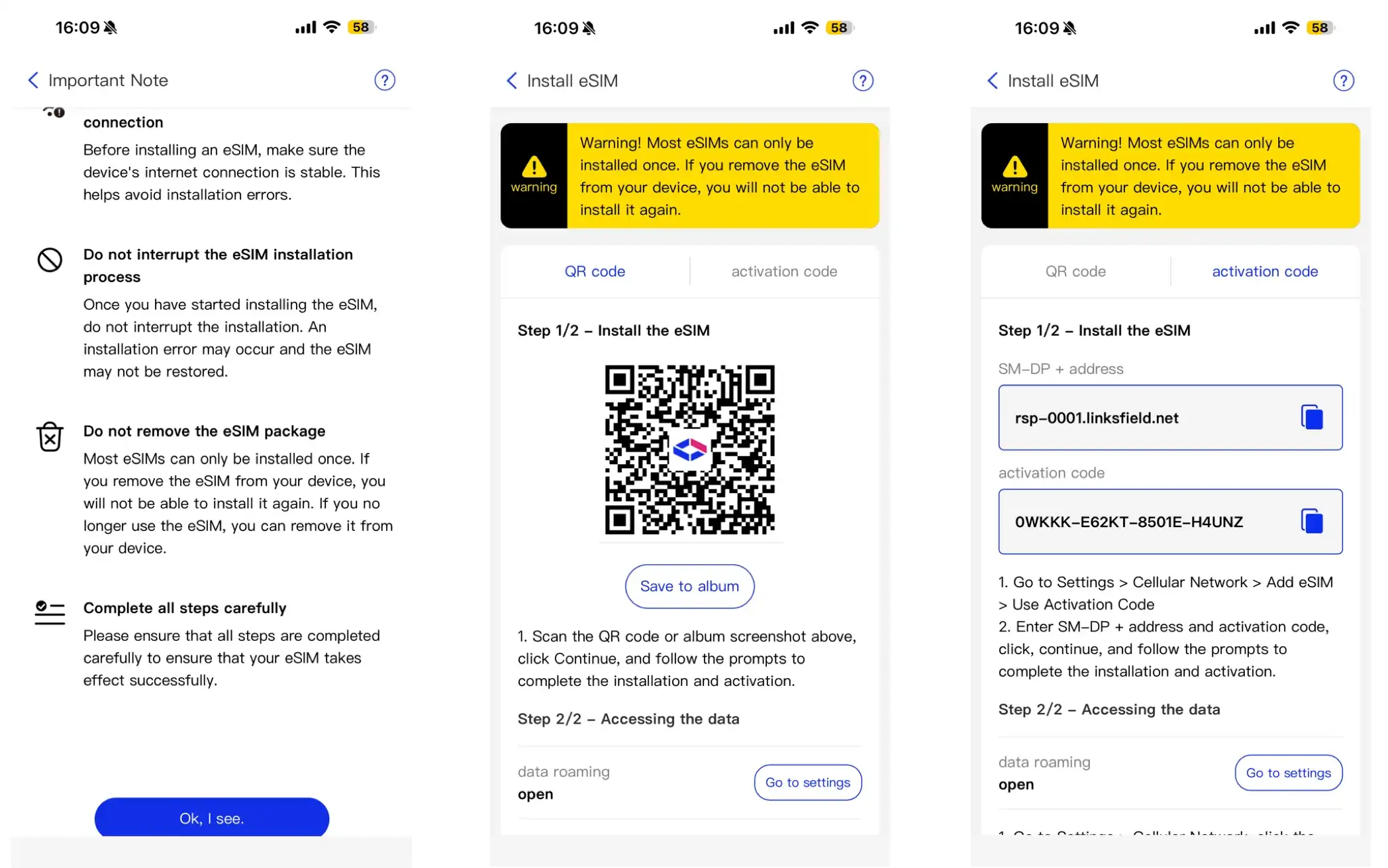
Note: Users can click "Save to Album" to save the QR code to their phone's photo album for later use.
3. Activate the eSIM card after purchase (Apple iPhone)
1. For Apple iPhones that support eSIM, go to "Settings" -> tap "Cellular" -> tap "Add eSIM" on the Cellular page, and then follow these steps:
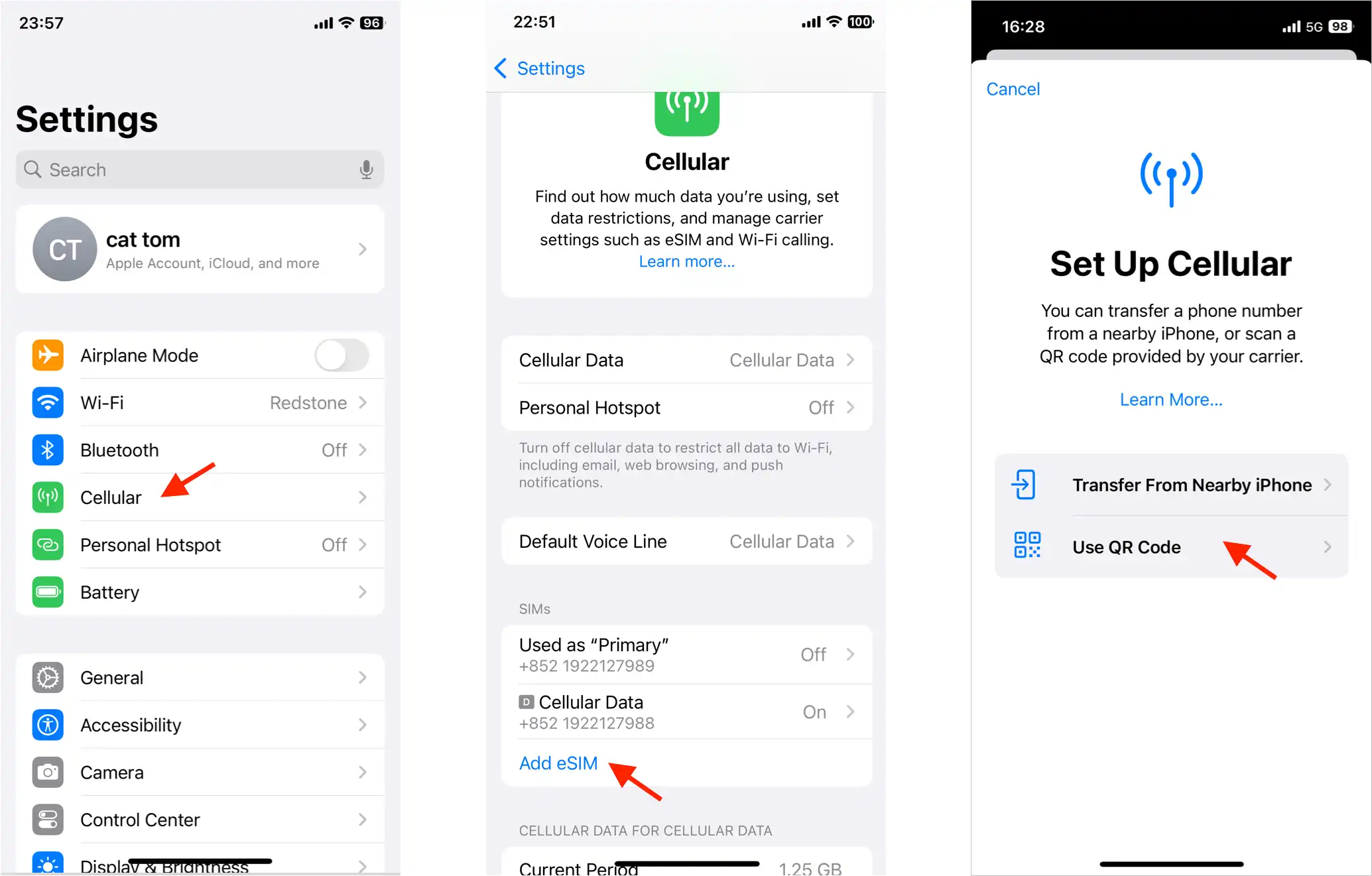
2. Tap “Use QR code” to enter the scanning interface, scan the saved QR code, and your iPhone will automatically download and activate the eSIM card.
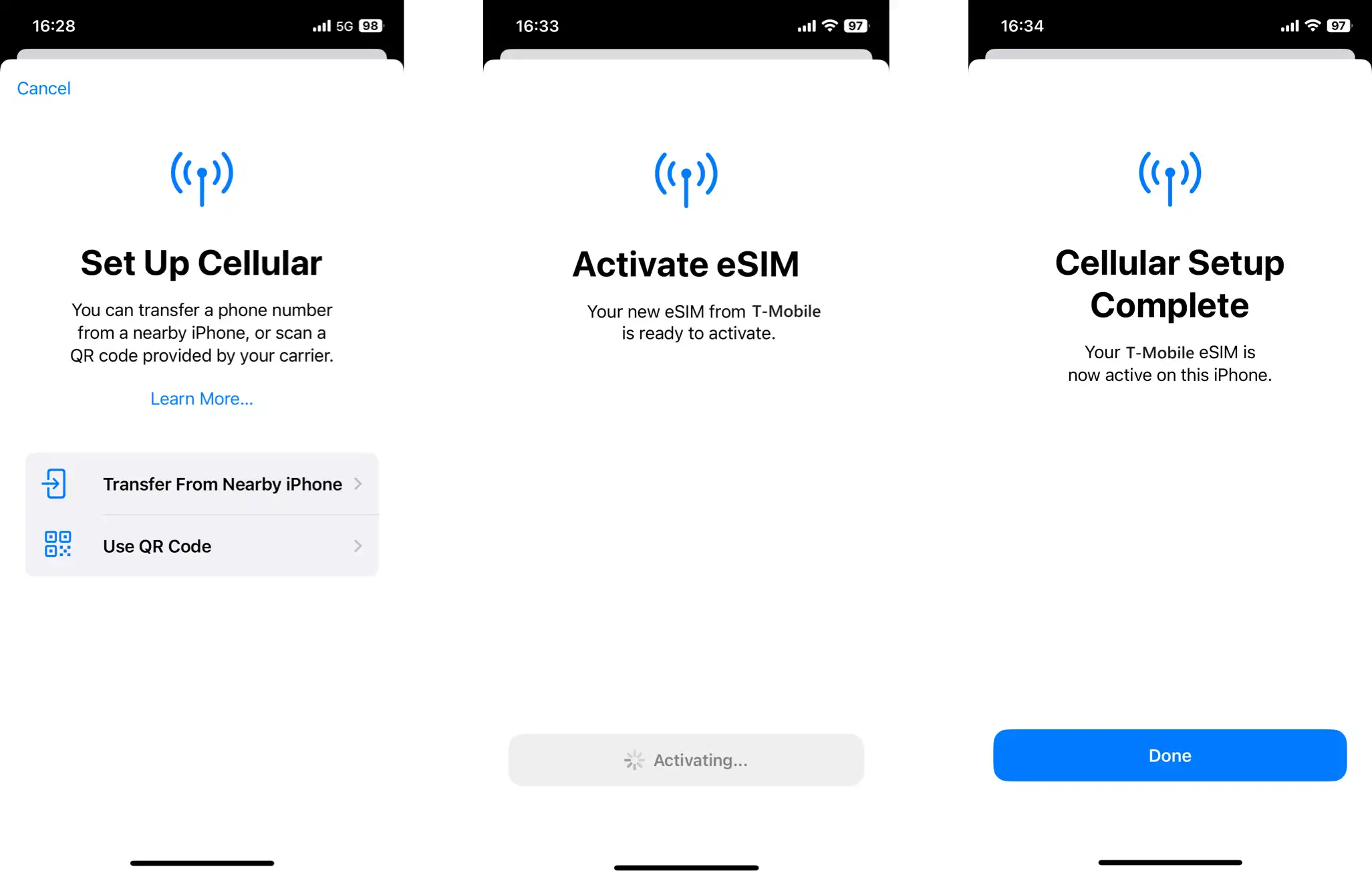
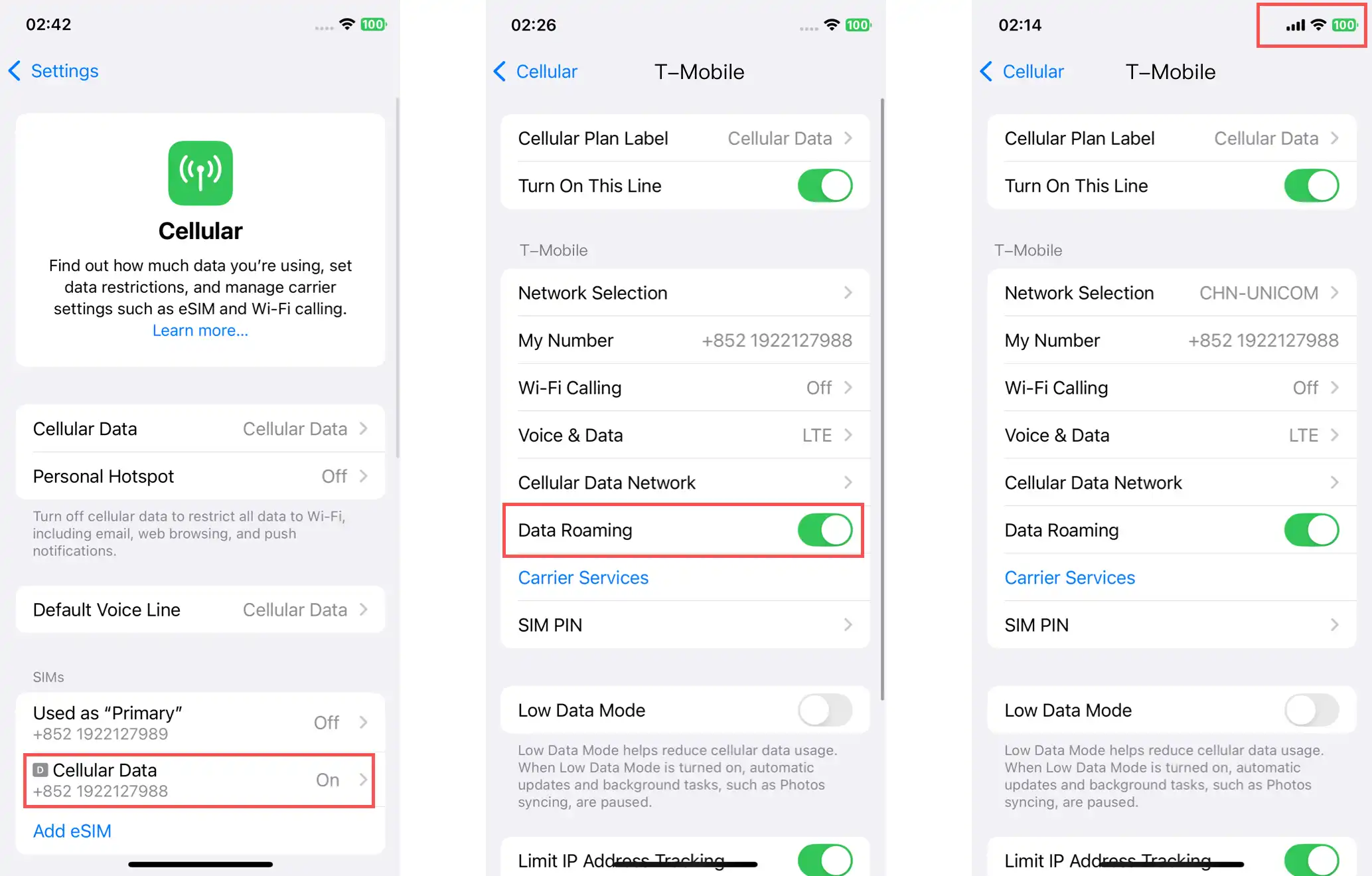
3. After clicking "Done," you will return to the "Cellular" settings interface, where the newly added eSIM card will be displayed as activated. Click to enter its details page, enable "Data Roaming," and the device will be able to connect to the internet normally.
IV. Activate the eSIM card after purchase (Android phone)
1. For Android phones that support eSIM, go to "Settings" -> tap "Network & Internet" -> tap "SIM cards" to enter the SIM card page -> tap "Add SIM card", and then follow these steps:
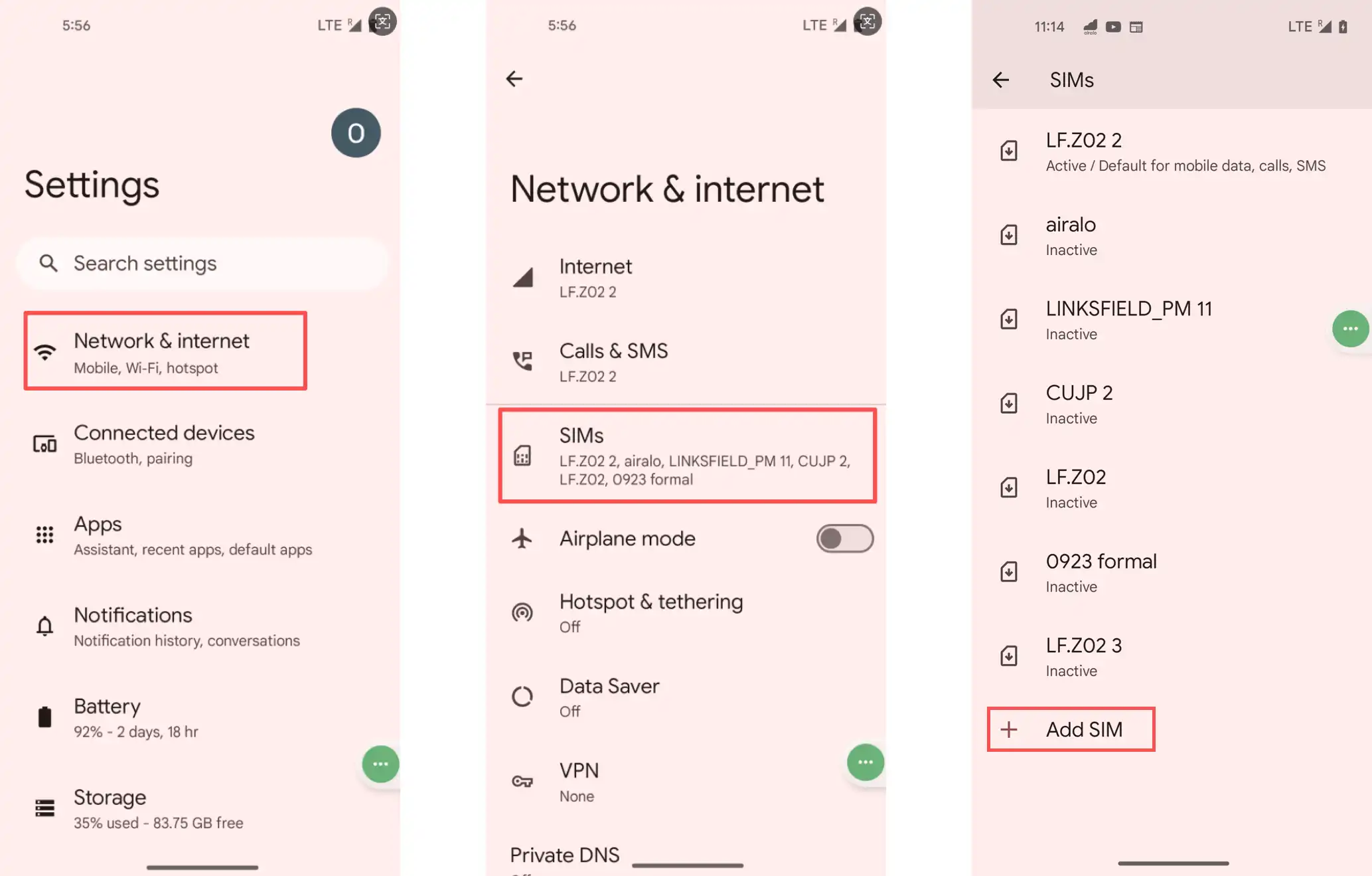
2. Click “Set up eSIM” to enter the “Scan Verizon QR code” page, and then click “Scan from photo”.
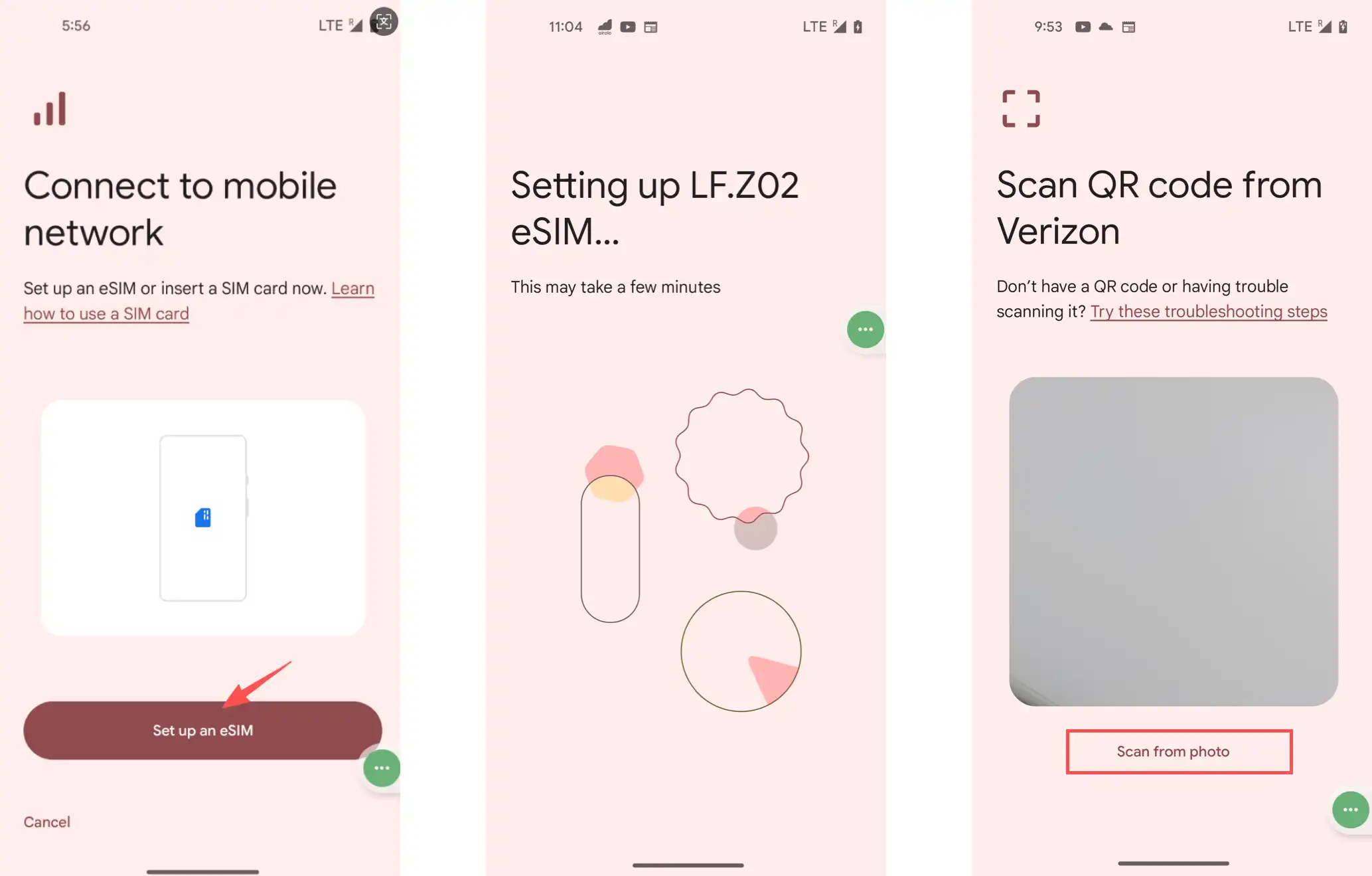
3. Select the previously purchased and saved eSIM card QR code from your phone's photo album. The system will begin the installation process, first prompting you to "Set up your eSIM card". Click "Set up" to begin installation. After installation, the system will prompt you to activate the eSIM card.
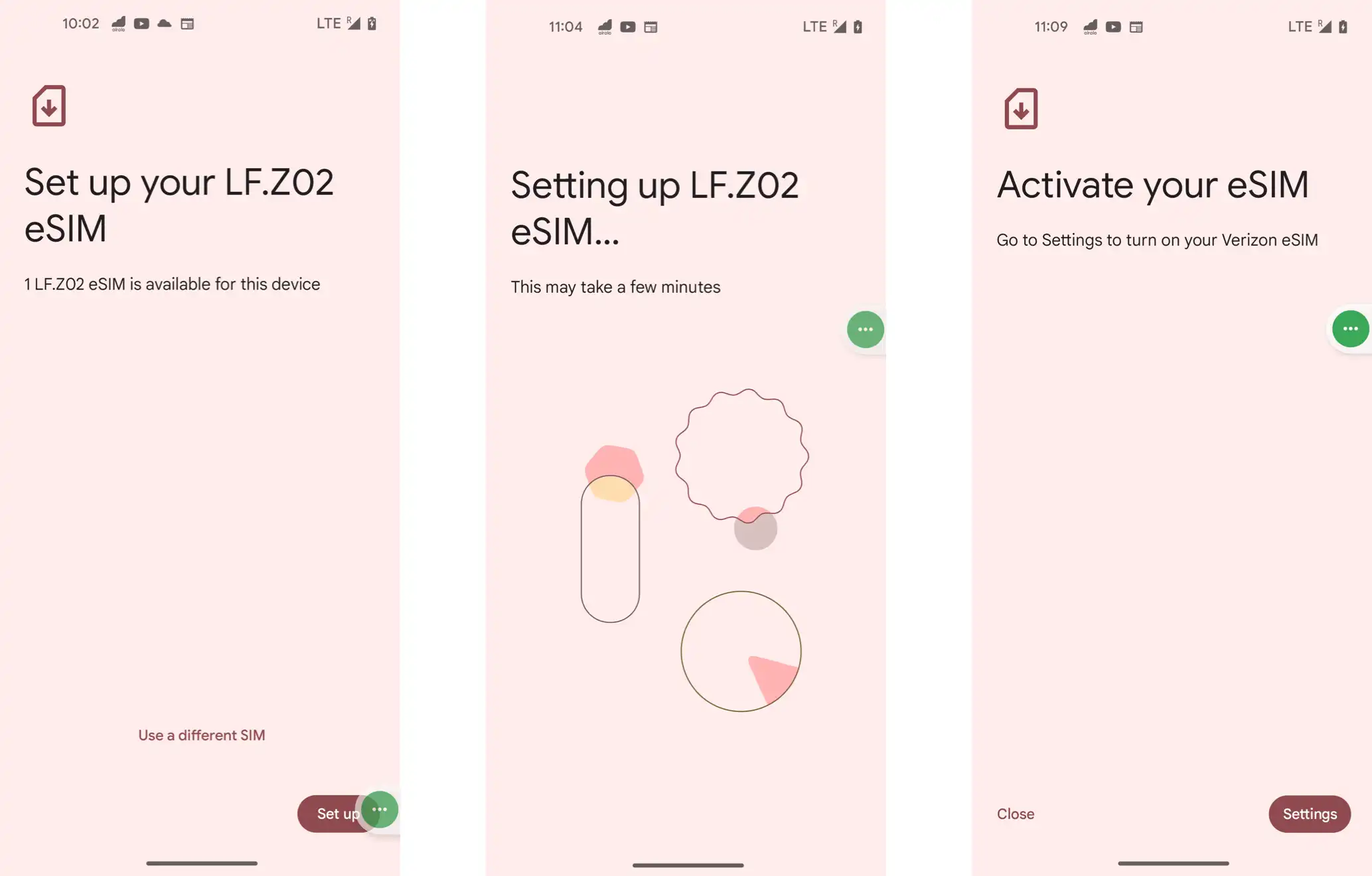
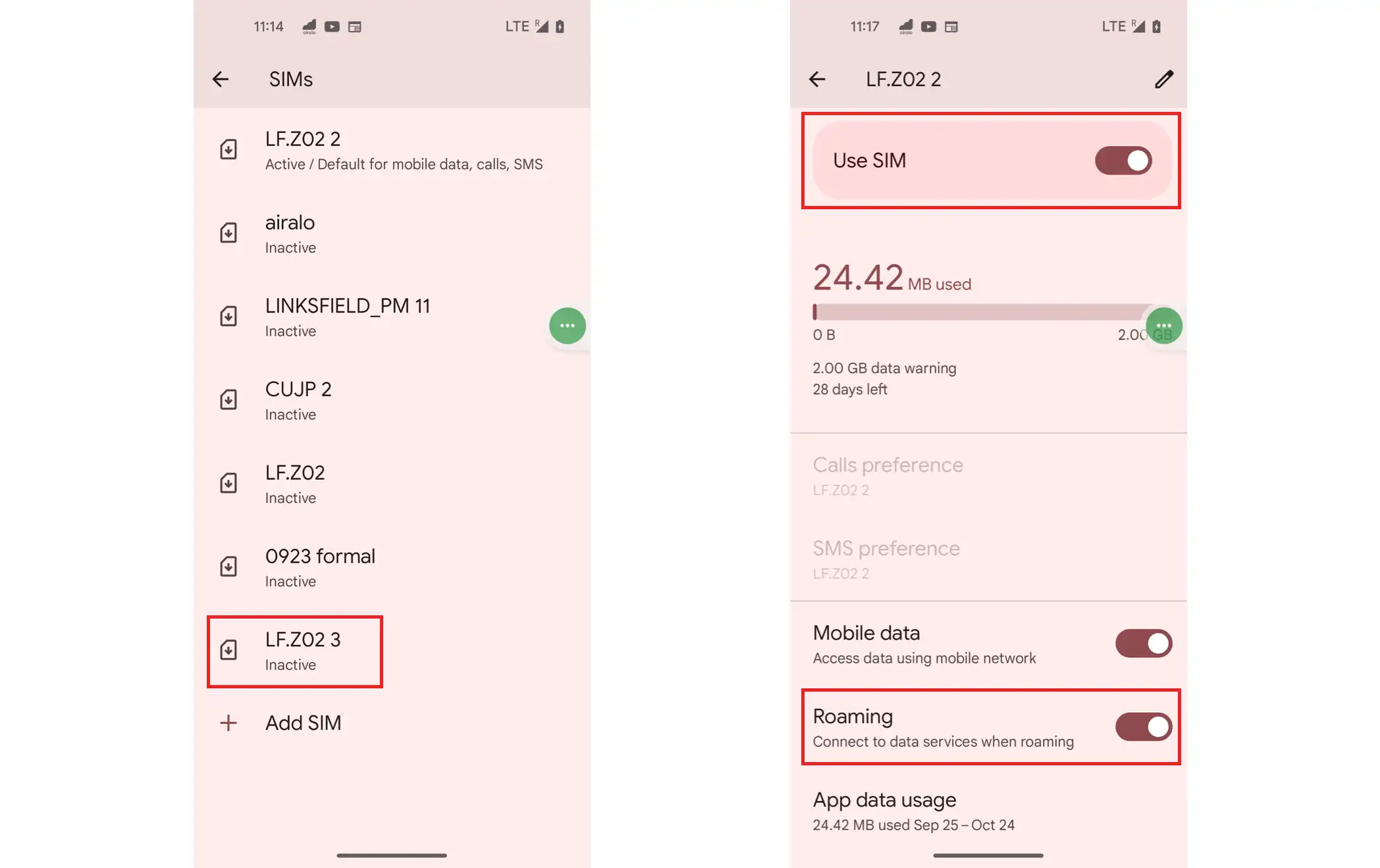
4. Tap "Settings" to access your phone's SIM card list, select the added eSIM card, and enter its settings page. Enable the "Use SIM card" option and then "Data roaming" to successfully activate the eSIM card.
V. How to top up an eSIM card?
1. Go to "My eSIM" -> "Current eSIM" page and click the "Top Up" button corresponding to the purchased eSIM card.
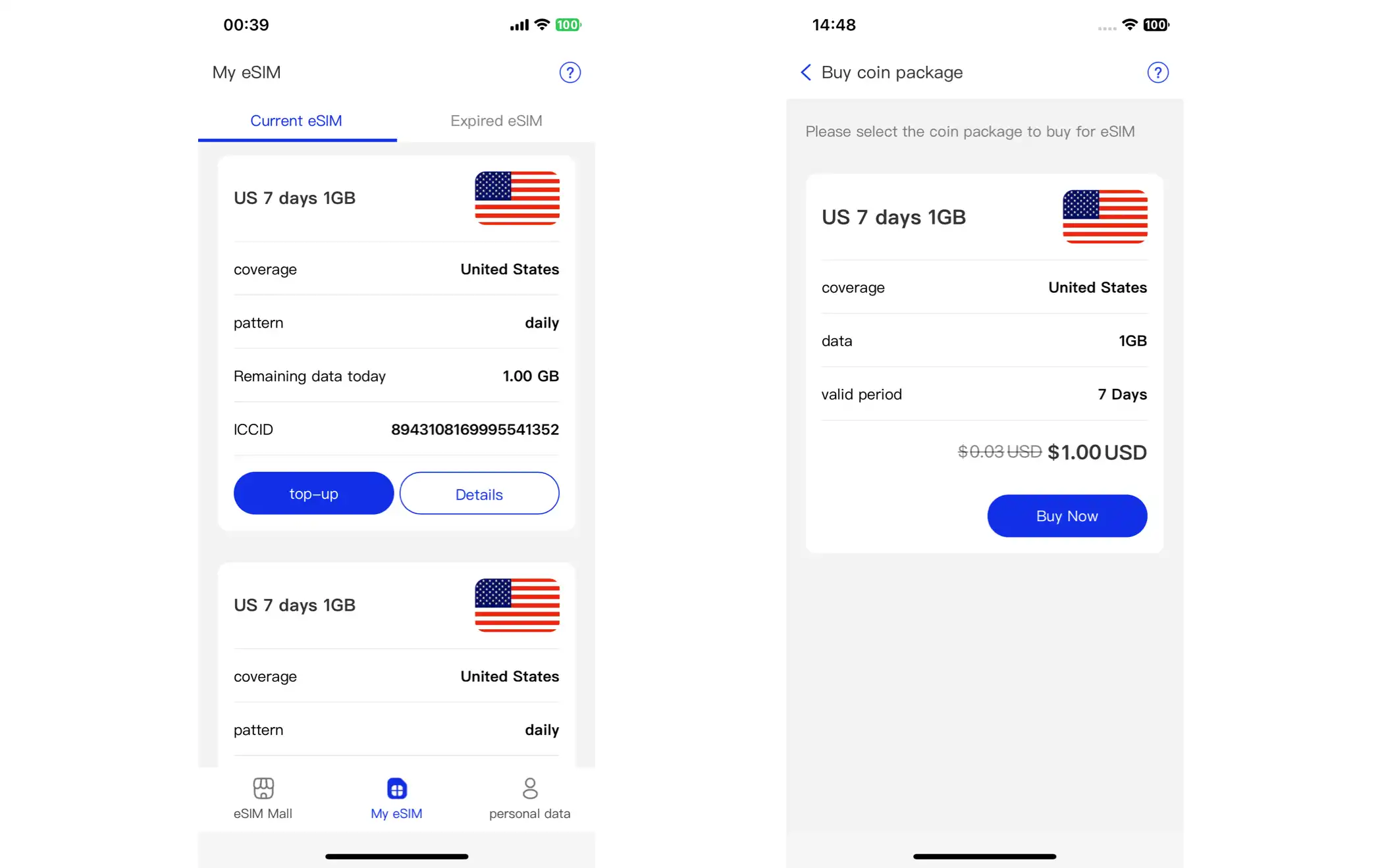
2. Click “Buy Now”, select a payment method, and then click “Submit Order”.
3. After the purchase is complete, go to "My eSIM" -> "Current eSIM" -> "Details" page. The "Package Expiration Date" will be updated according to the recharge status.