

How do I purchase and activate an eSIM (one-click activation)?
1. Purchase an eSIM card
You can purchase an eSIM card through the RedEx app (available for iOS/Android) or online at the RedEx website: https://www.redex.vip .
iOS Device Purchase and Installation Process (Video Tutorial)
Android Device Purchase and Installation Process (Video Tutorial)
One-click activation is not currently supported on Android. Please refer to the manual activation tutorial in the upcoming update.
RedEx Application Purchase and Installation Process (Text Version)
1. Open the RedEx application and click the "Sign In" button in the upper right corner. There are two login methods: Google account login and Apple account login.
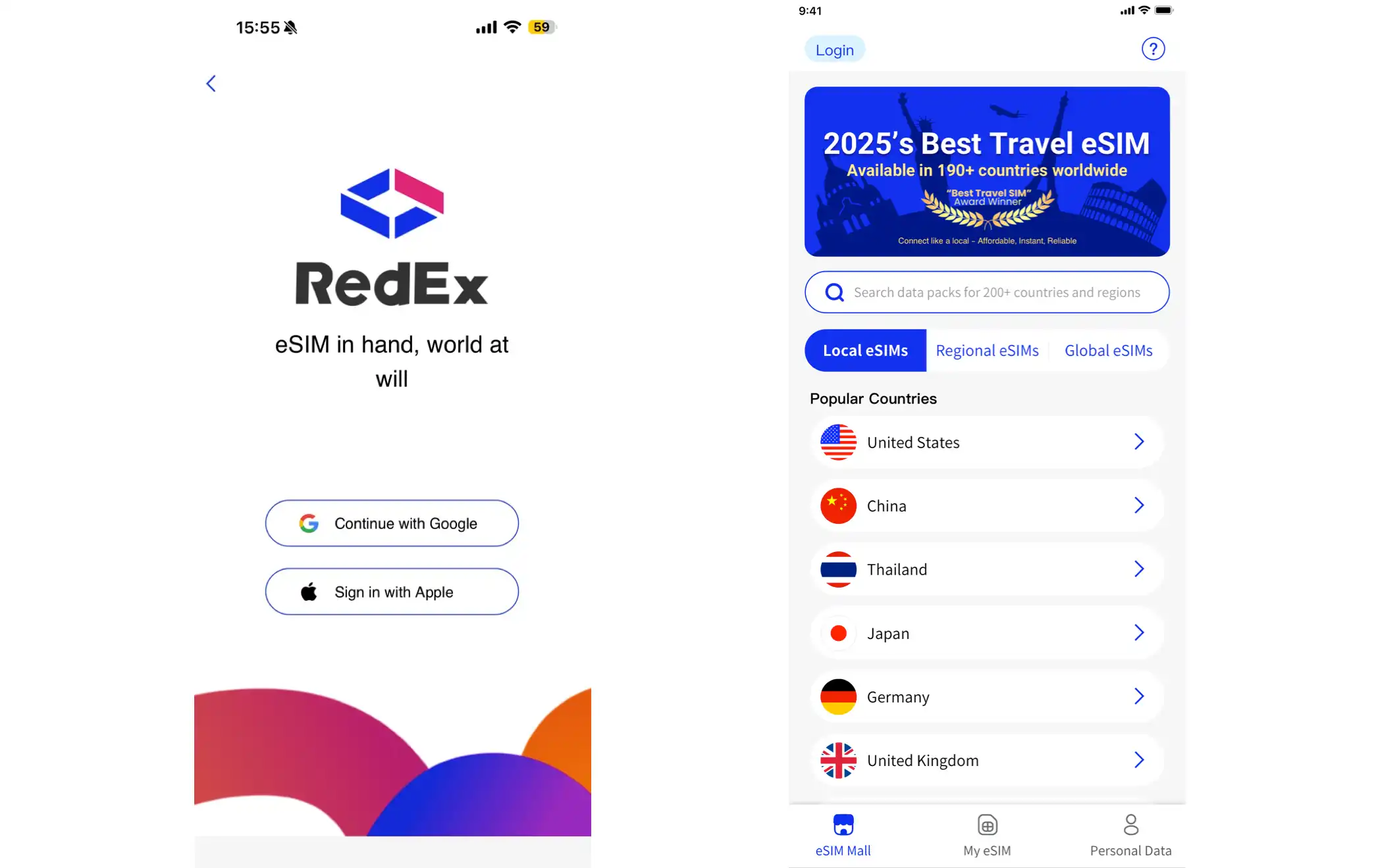
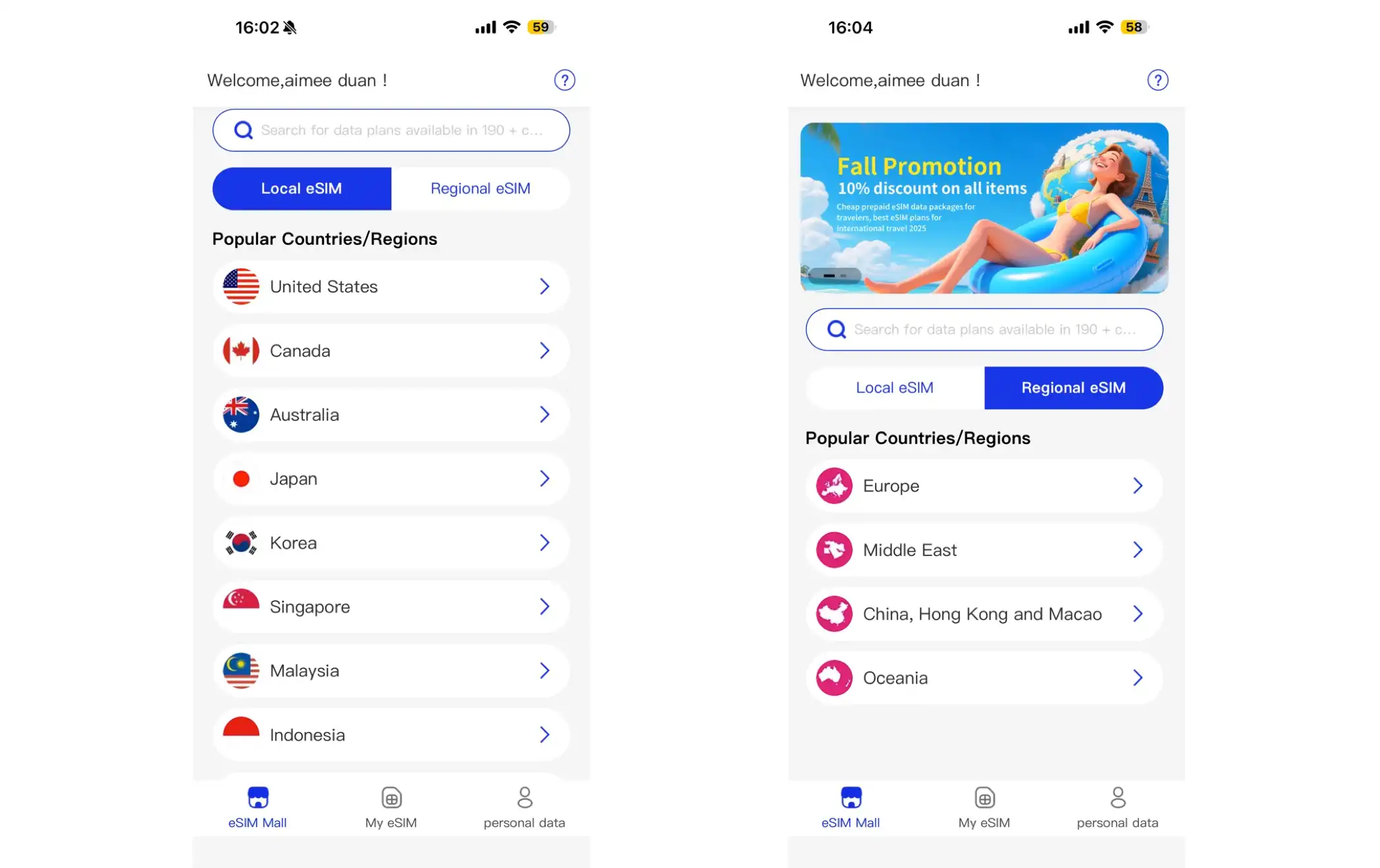
2. Enter the "eSIM Mall" section and search for your target country using the drop-down menu or by manually entering it. After clicking on the selected country, the page will display all available eSIM plans applicable to that country.
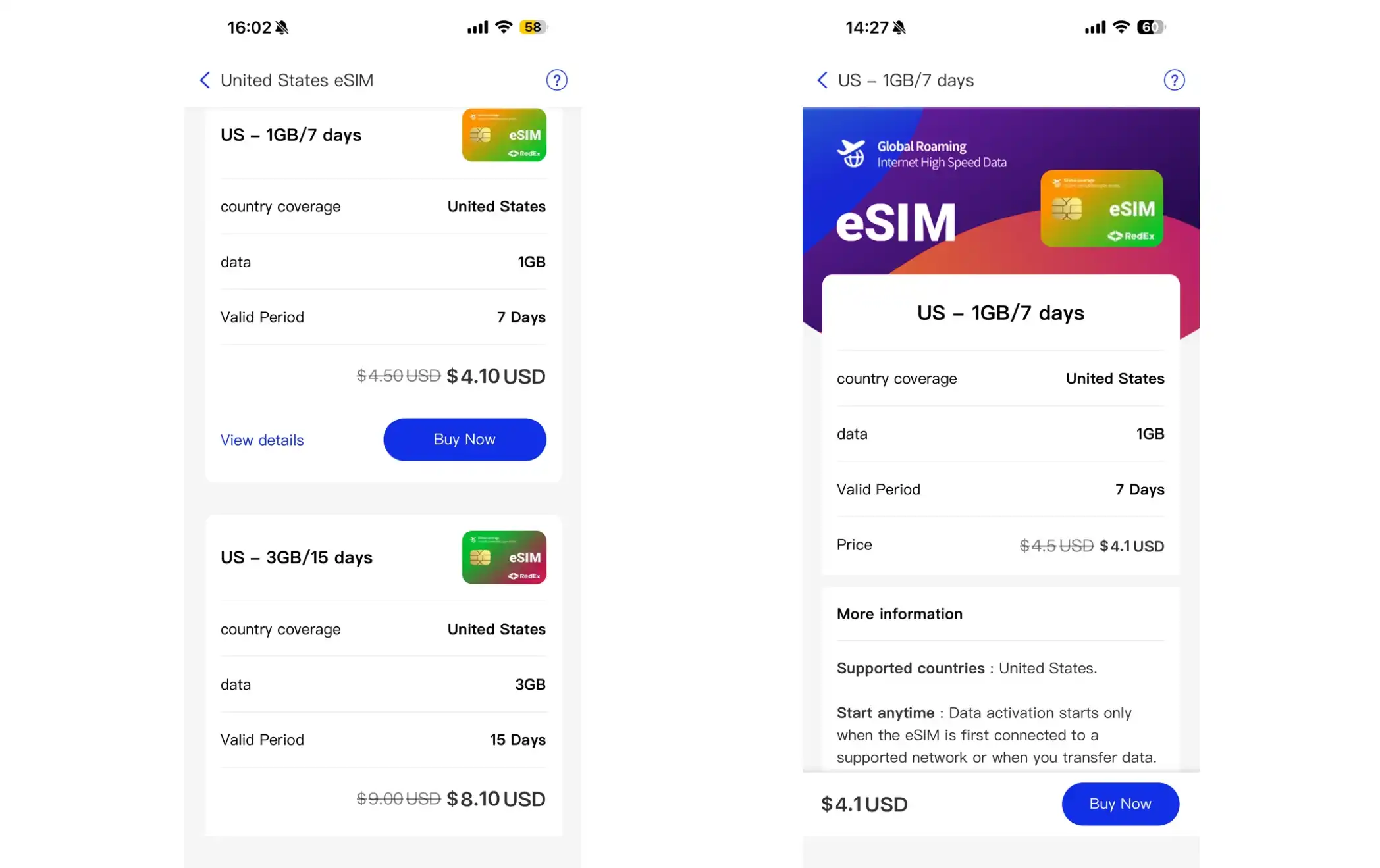
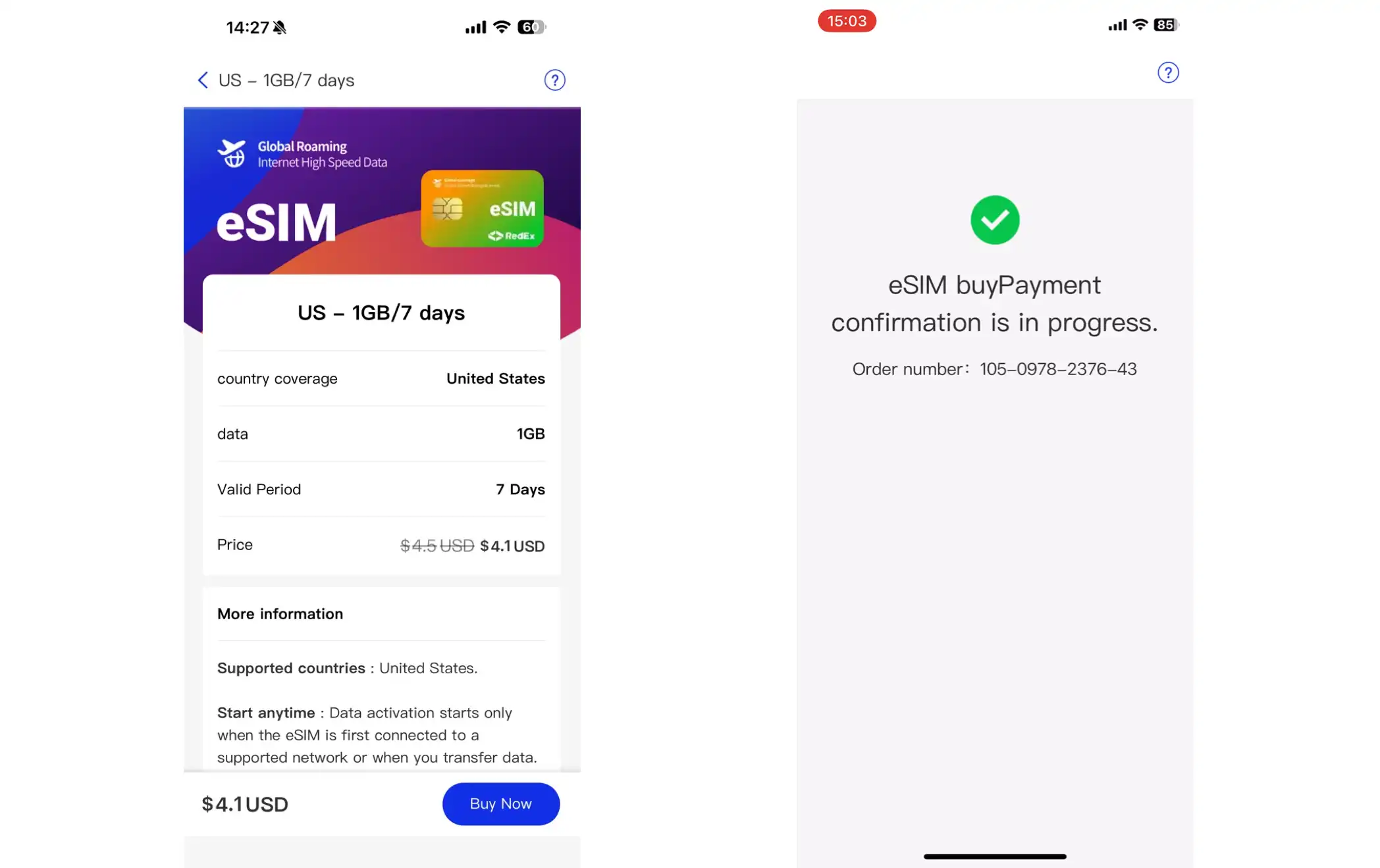
3. Select the eSIM plan you need and click "Buy Now".
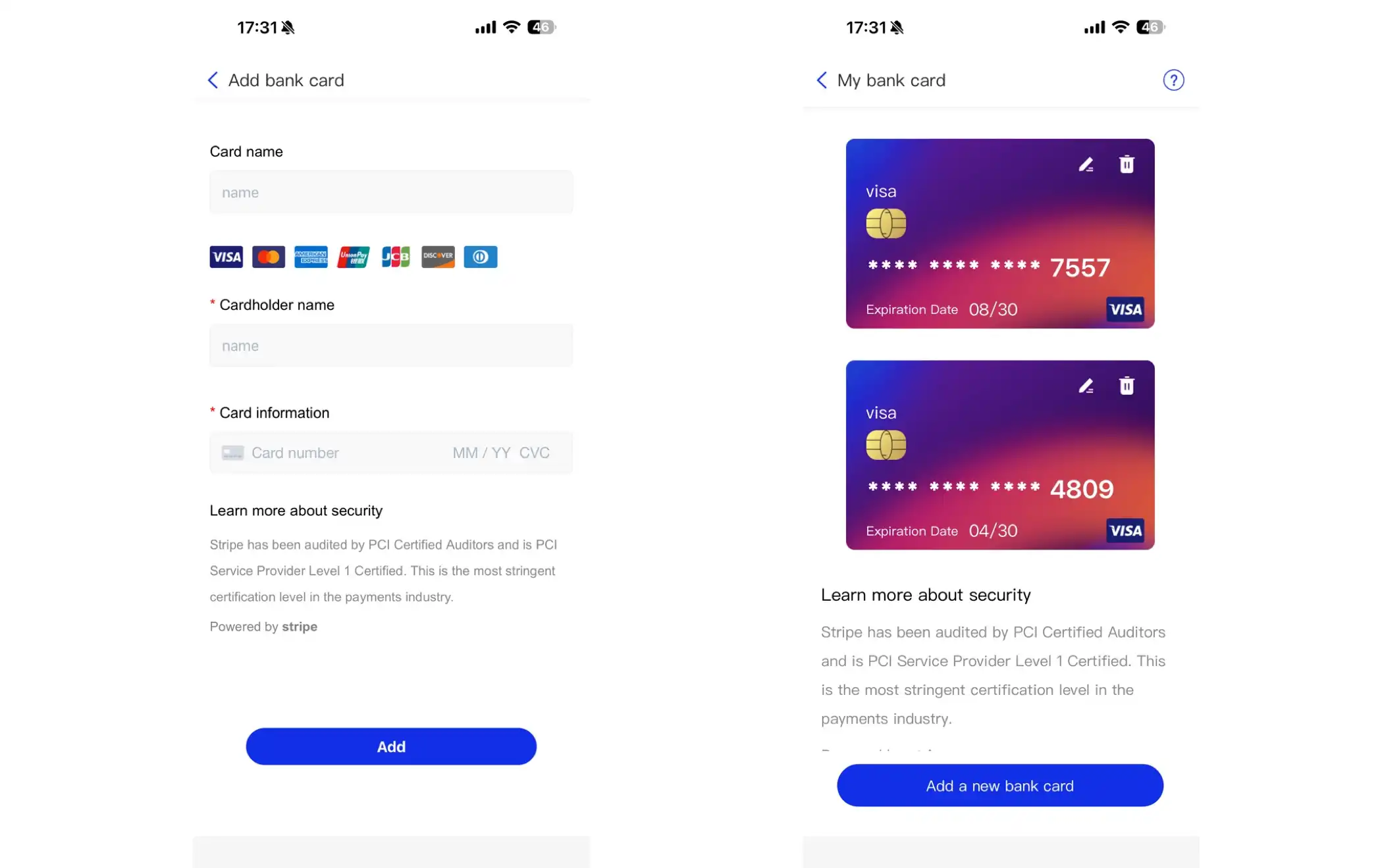
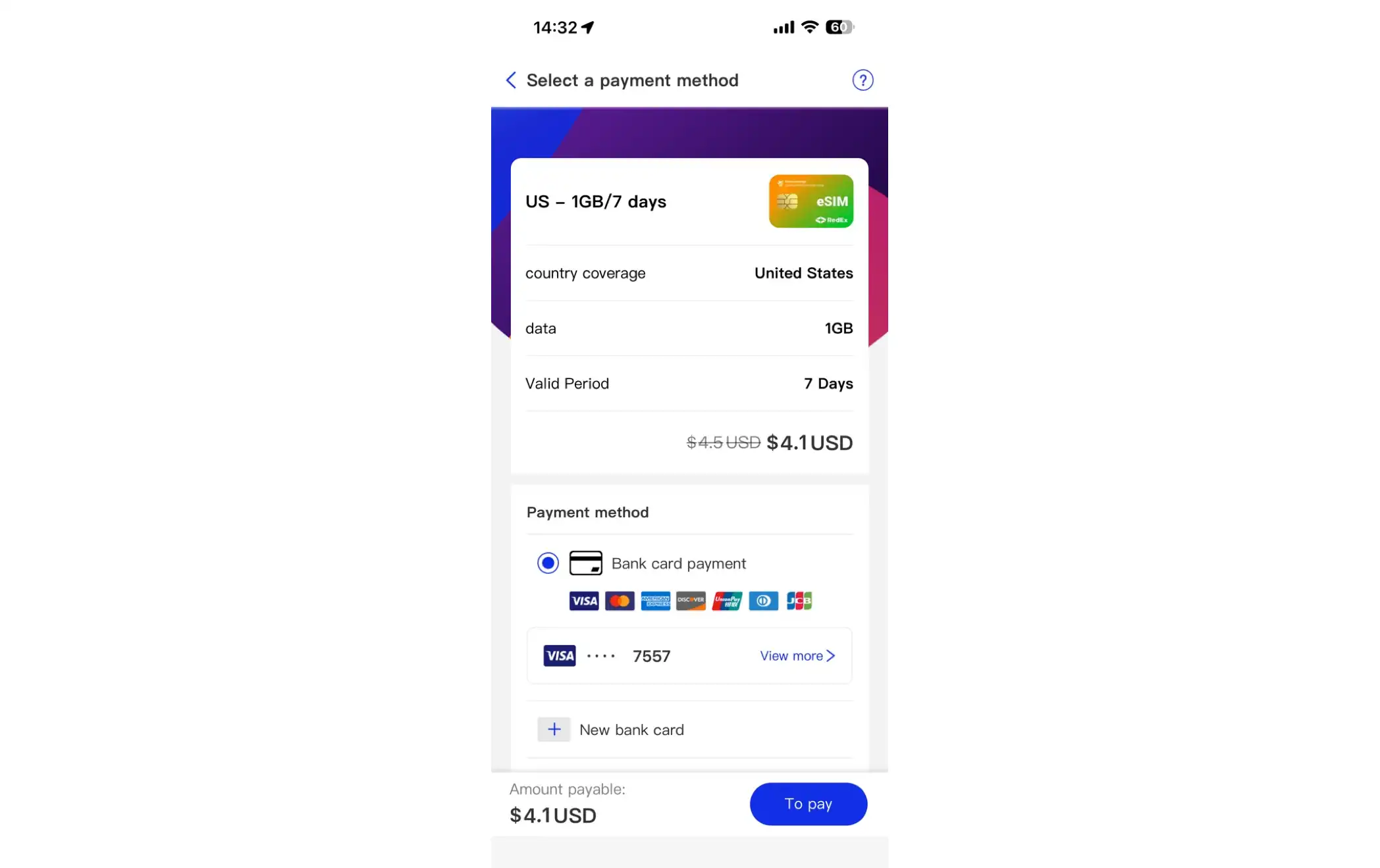
4. Choose a payment method. Credit/debit card and PayPal are supported. If you choose bank card payment, you must add a bank card first (one account can be linked to multiple bank cards). When adding a new bank card, please ensure that you enter the card information accurately (card number, expiration date, and security code CVC), otherwise the payment will fail.
5. After selecting a payment method, click "Pay". A confirmation message indicates a successful purchase. After purchase, you can click "View eSIM" to check the detailed information of your purchased eSIM card.
2. View my eSIM card
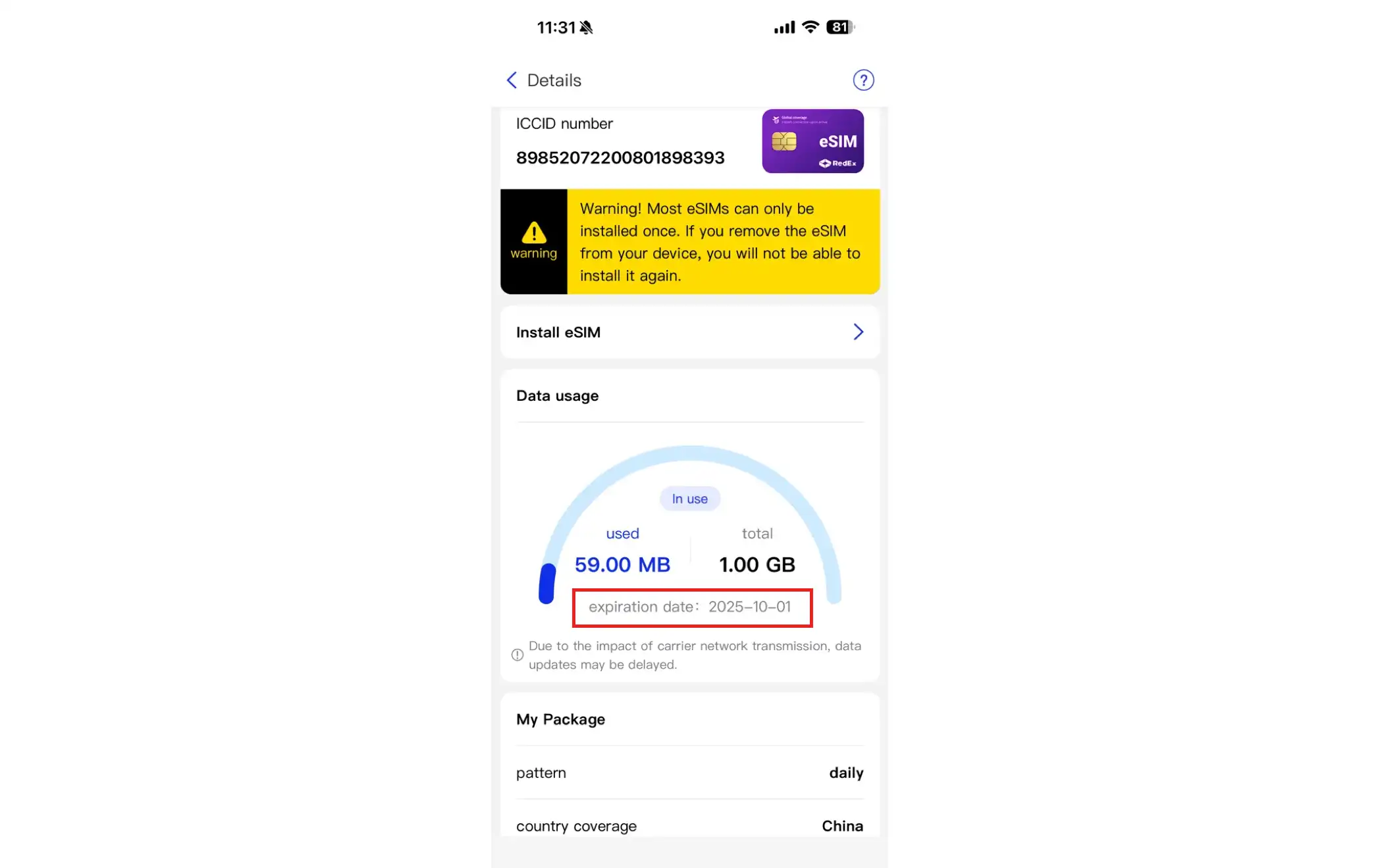
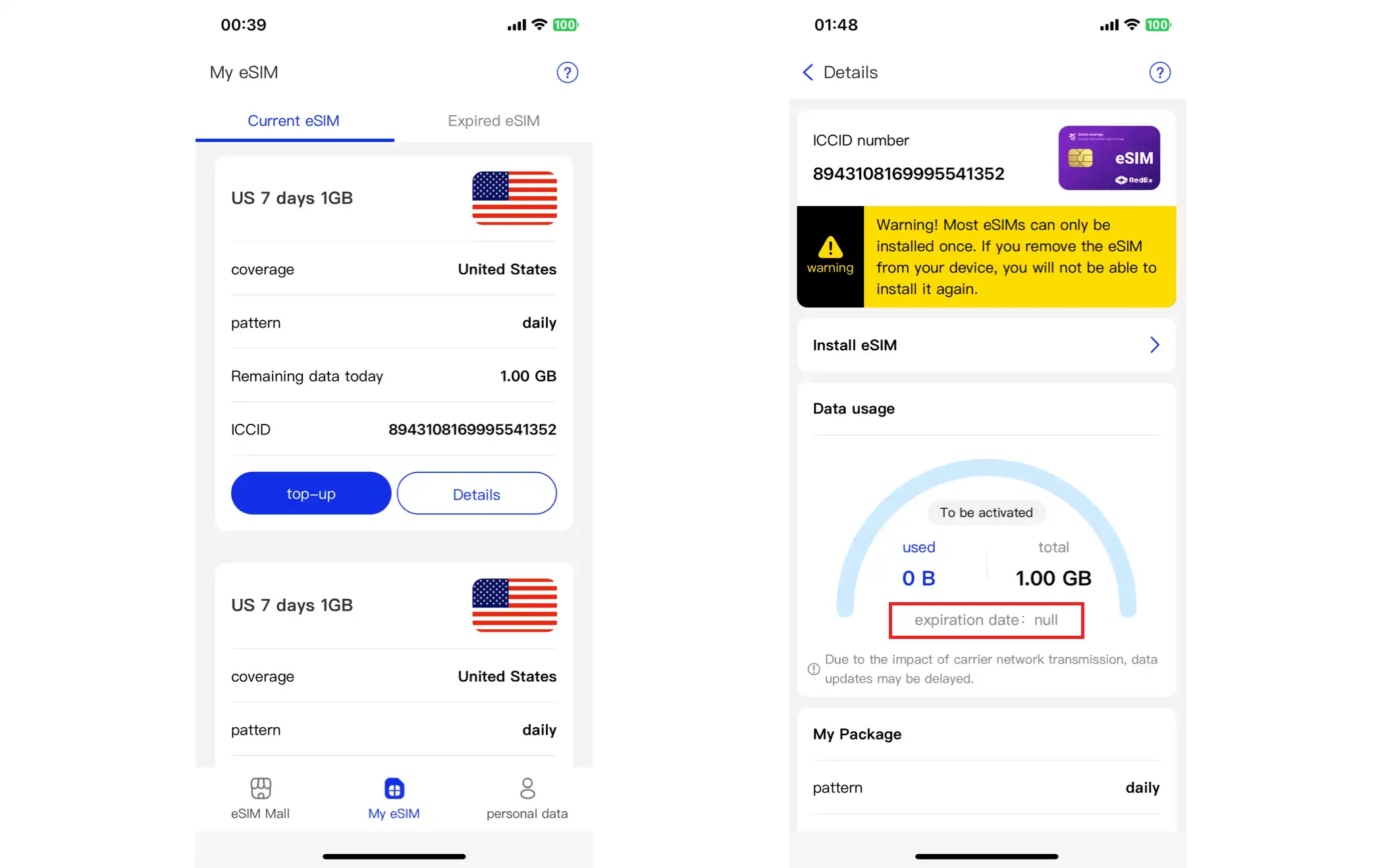
1. After purchase, you can click "View eSIM"; or you can manually go to "My eSIM" -> "Current eSIM" page. This page will display a list of all eSIM cards purchased under your account. Click the "Details" button for the target eSIM card to view its specific information.
2. Click “Install eSIM”. The system will first prompt you to review important instructions. After confirmation, the page will display detailed instructions for both QR code installation and activation code installation methods.
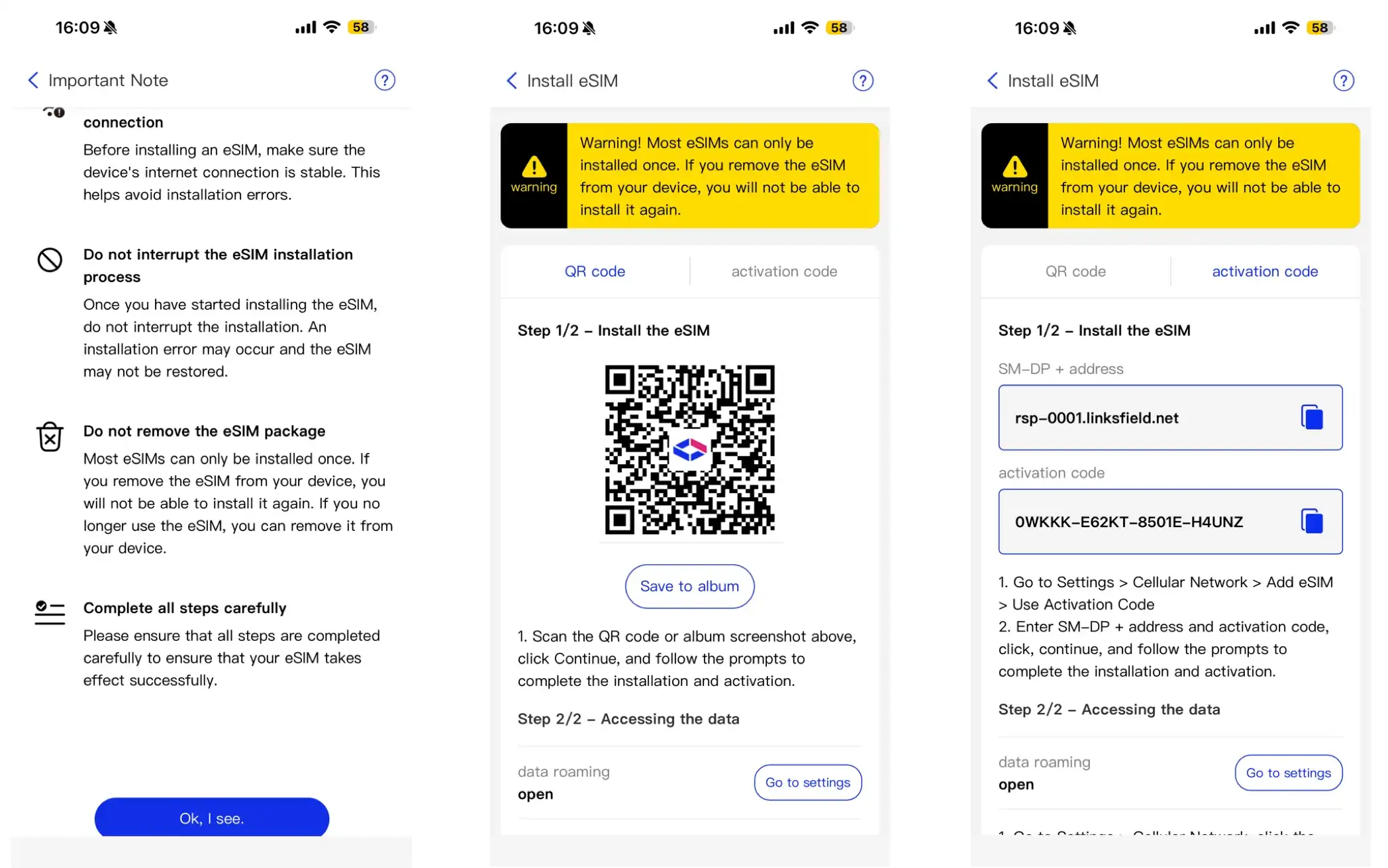
Note: Users can click "Save to Album" to save the QR code to their phone's photo album for later use.
3. Activate the eSIM card after purchase (Apple iPhone)
The app (iOS) supports one-click activation for Apple phones (supporting eSIM functionality and iOS version 17.4 and above). The specific steps are as follows:
1. On the Install eSIM page, click “Install eSIM now”.
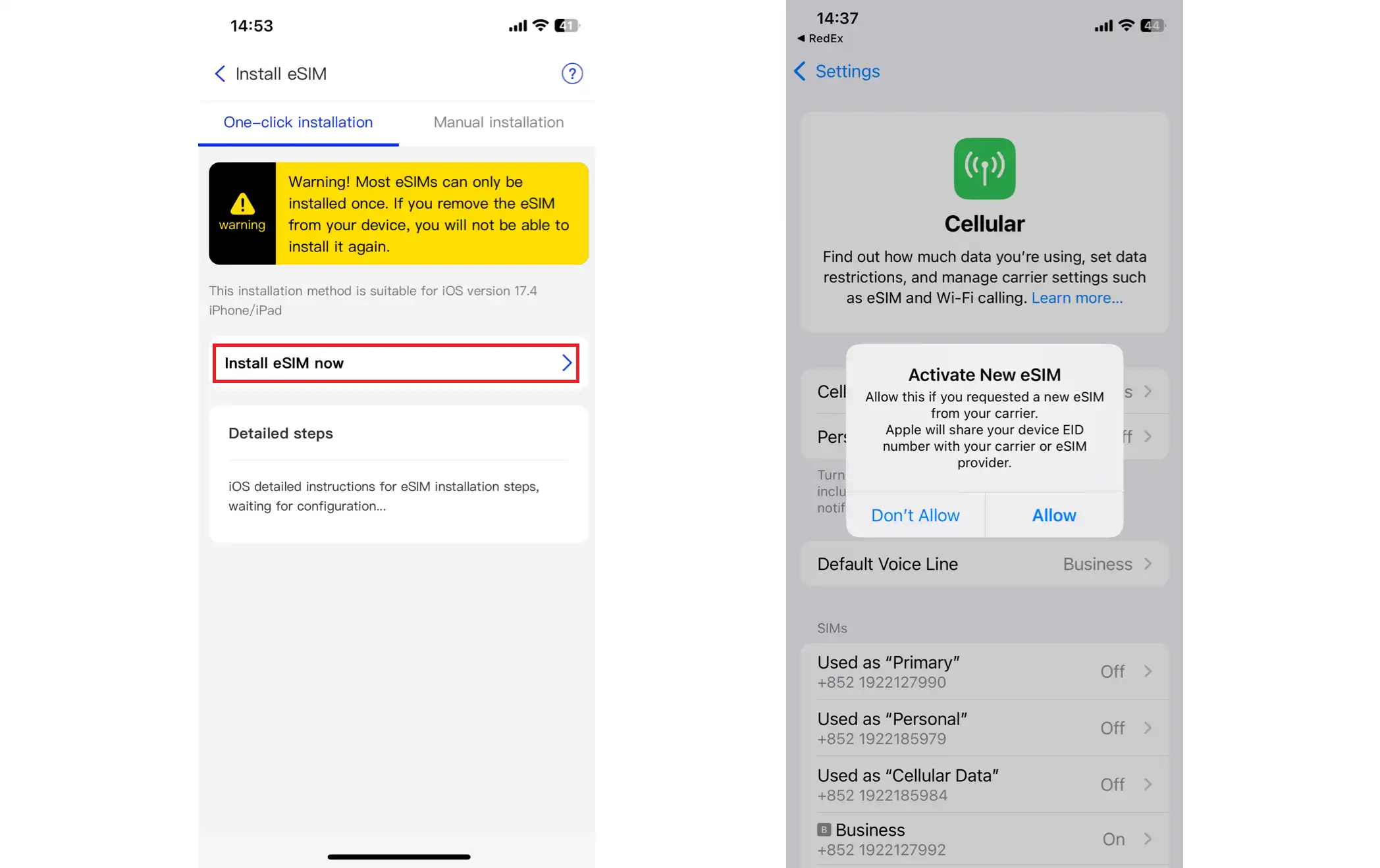
2. The user will be prompted whether to activate the new eSIM. Clicking "Allow" will start the automatic installation and activation process for the eSIM.
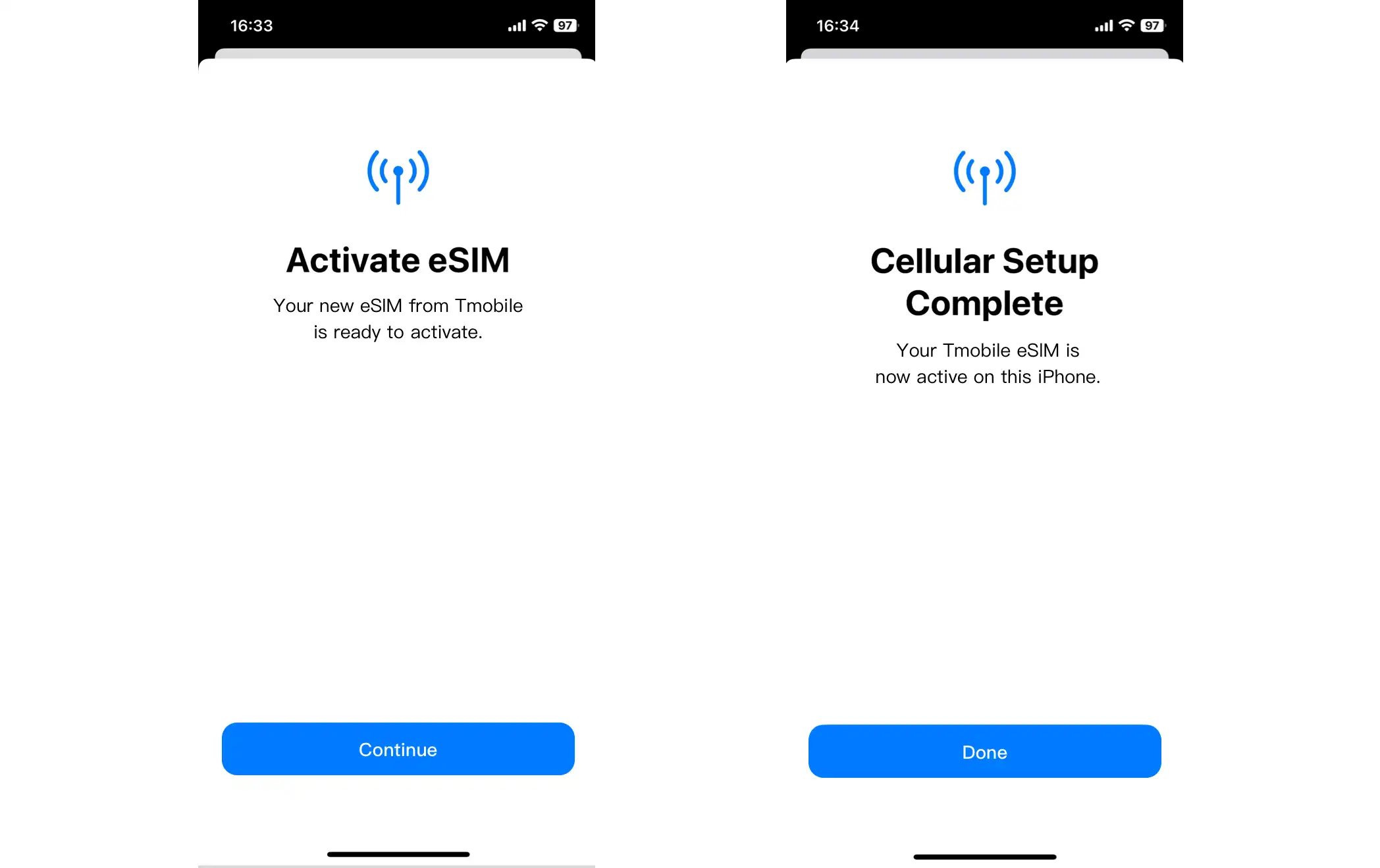
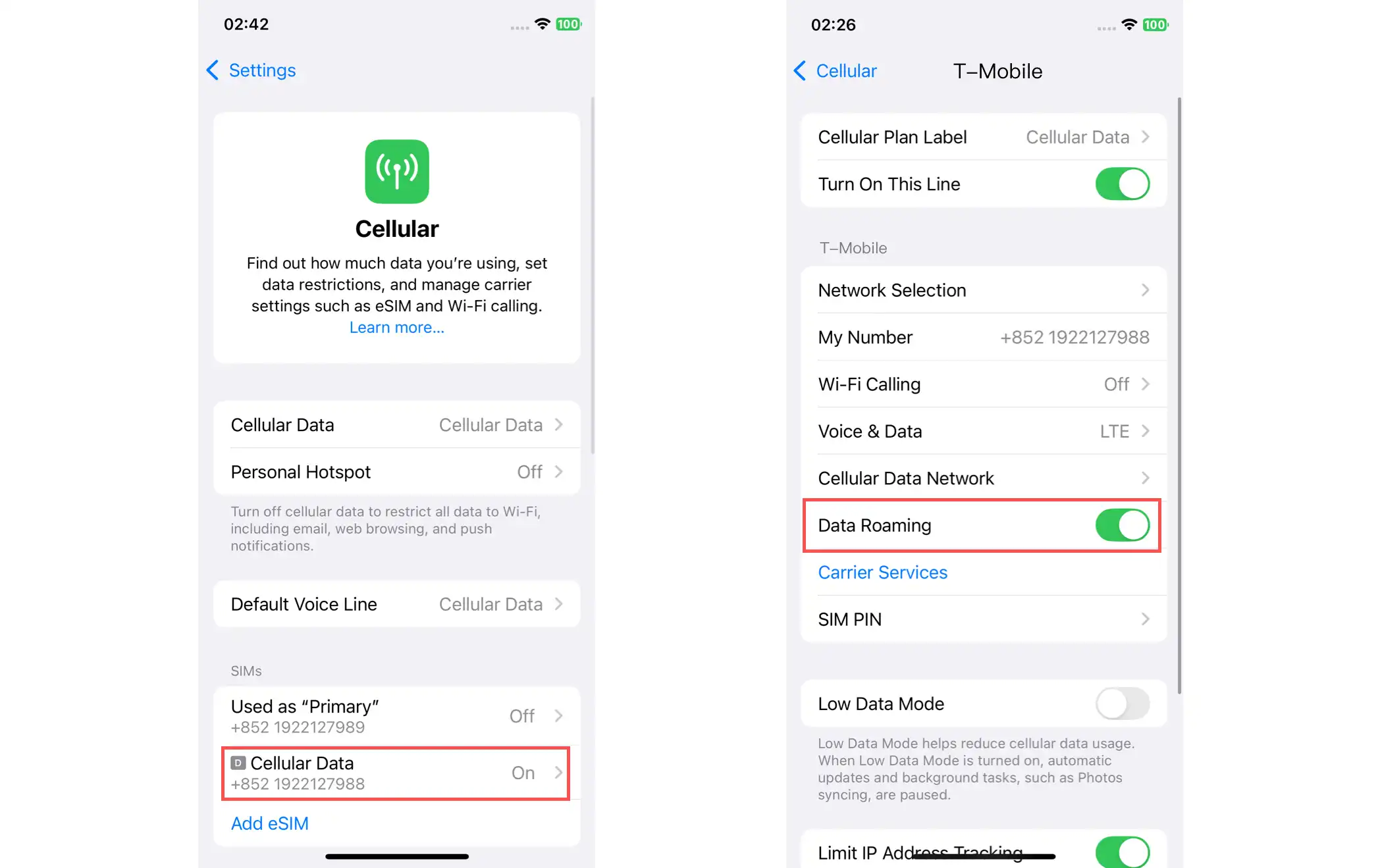
3. After clicking "Done", you will be automatically taken to the Cellular settings page on your phone. The eSIM will be in the ON state when you first add it. Click to enter and make settings, such as setting Roaming to ON. Then your phone can access the Internet.
IV. Activate the eSIM card after purchase (Android phone)
One-click activation is not currently supported on Android. Please refer to the manual activation tutorial in the upcoming update.
V. How to top up an eSIM card?
1. Go to "My eSIM" -> "Current eSIM" page and click the "Top Up" button corresponding to the purchased eSIM card.
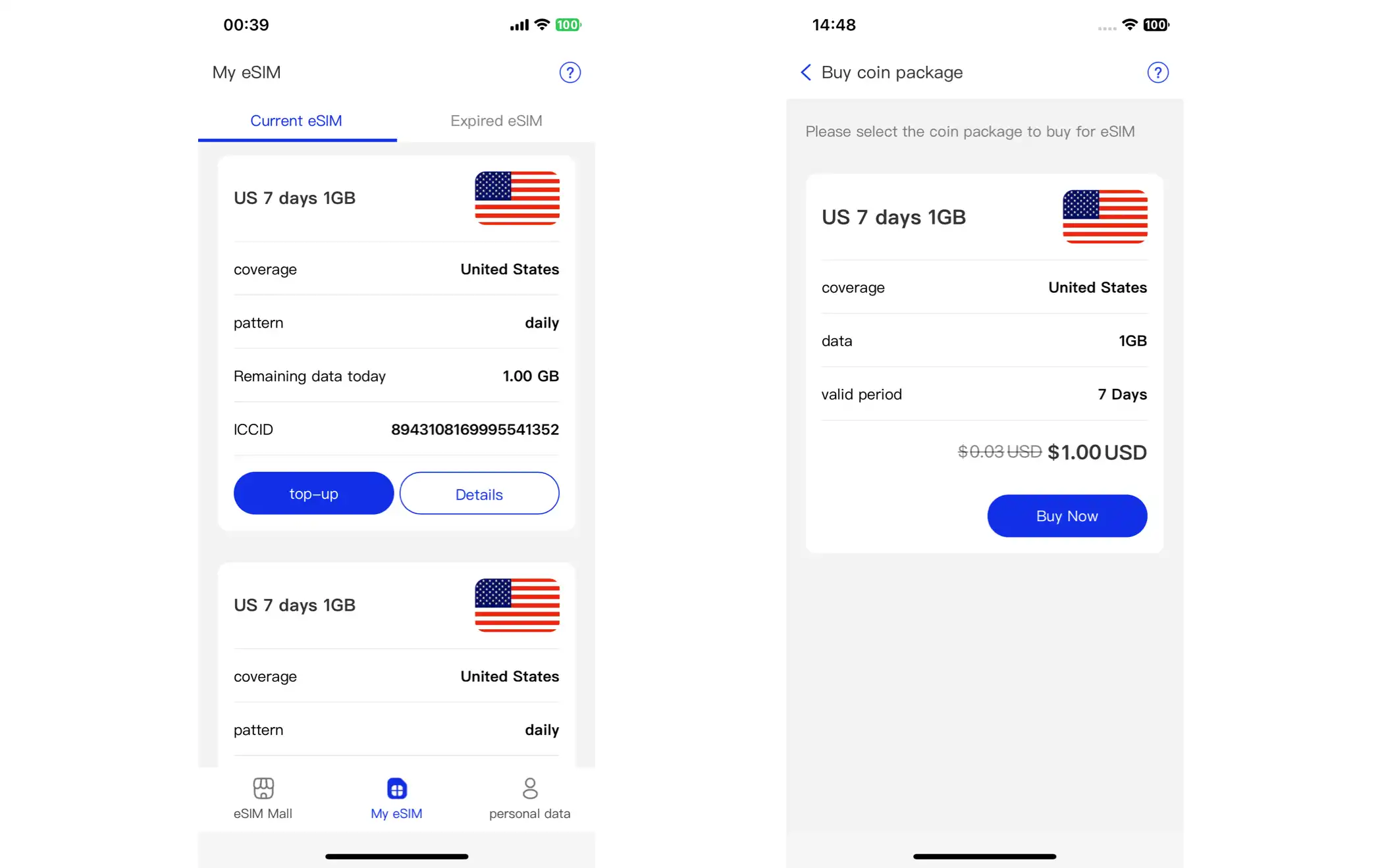
2. Click “Buy Now”, select a payment method, and then click “Submit Order”.
3. After the purchase is complete, go to "My eSIM" -> "Current eSIM" -> "Details" page. The "Package Expiration Date" will be updated according to the recharge status.